Your whole collection,
from SID to FLAC.
SoniqBoom is a self-hosted music server that plays the formats other servers forget — chiptune, tracker modules, SID, MIDI, console rips — alongside FLAC, DSD and every modern codec, streamed to any browser on your network.
01What's inside
One server for the everyday lossless library and the weird corners of music history.
Chiptune & console
SID, NSF, SPC, GBS, VGM, AY, KSS, SAP, GYM, HES — rendered on the fly, with tunable 6581 / 8580 SID fidelity.
Tracker modules
MOD, XM, IT, S3M, MED and the full libopenmpt family — every voice metered on its own channel.
Amiga & Atari exotica
Over 175 UADE formats — TFMX, Future Composer, Jochen Hippel, SidMon — plus AHX, HivelyTracker and Atari ST SNDH / YM / SC68.
Portable & console rips
The PSF family in full — PSF, PSF2, GSF, USF, 2SF, SSF, DSF and NCSF — straight from the reference emulation cores.
AdLib / OPL FM
The sound of DOS gaming — id Software IMF, ROL, CMF and more, through an OPL2 synthesiser.
Lossless & DSD
FLAC, ALAC, WAV, AIFF, WavPack — plus 1-bit DSD (DSF / DFF / WSD) and every common lossy codec.
Visual library
Per-channel VU meters, a live spectrum fallback, an animated decode signal-chain, and the Library Galaxy star-field.
Scene origins
Retro modules matched by fingerprint against Modland fill in the original scene author and the tune's provenance path.
Network libraries
Attach FTP, SMB and WebDAV shares straight from the admin panel — no operating-system mount required.
OpenSubsonic API
Connect Amperfy, Symfonium, DSub, Feishin and the wider Subsonic app ecosystem to your server.
Internet radio
A curated demoscene & chiptune station pack plus the worldwide directory — HLS and classic streams alike, with live now-playing titles and cover art.
Casting Beta
Send playback to Chromecast, AirPlay and DLNA receivers — even rendered SID and tracker tunes.
Multi-user & PWA
Accounts with roles, multi-room sync, instant mixes, smart playlists, offline downloads, time-synced lyrics, scrobbling, and an installable web app.
02Install & first run
SoniqBoom runs on macOS and Linux. Point it at your music, hit scan, and open it in any browser.
brew install git; Linux:
apt install git or your distro's equivalent). The installer fetches everything else — ffmpeg and
all the renderers. Any modern desktop or mobile browser can play the library; plan for memory that grows with
your collection, since the whole index lives in RAM (see System notes).macOS & Linux — one-shot install
# clone, install everything, and start the server
git clone https://github.com/SFCyris/SoniqBoom.git
cd SoniqBoom
bash install.sh        # Python, ffmpeg, and ALL retro renderers
bash run.sh            # starts the server on port 8080
install.sh installs sidplayfp (SID), fluidsynth (MIDI),
libopenmpt (trackers), uade (AHX + Amiga exotica), libgme (console
chiptunes), adplay (AdLib/OPL), the Atari ST renderers (psgplay and sc68, with the
bundled StSound engine compiled on first play) and zxtune123 (the PSF console-rip family) — on macOS via Homebrew, on
Linux via your distribution's package manager (apt, dnf, pacman or zypper). The HivelyTracker decoder is
bundled with SoniqBoom itself. Nothing to pick, nothing to add later — every format in this
guide plays out of the box.Or run it in Docker
One container ships ffmpeg and all the renderers. Your music mounts read-only at
/music; everything the server writes lives in one named volume.
# clone, build, and start — then create the first admin
git clone https://github.com/SFCyris/SoniqBoom.git
cd SoniqBoom
docker compose up -d
docker compose exec soniqboom soniqboom-setadm -user alice -passwd 'a-strong-password'
Open http://<host>:8080, sign in, and add /music as a library folder.
For automatic HTTPS on your own domain, the repo includes a Caddy stack —
docker compose -f deploy/docker-compose.https.yml up -d. Full details, updating,
and backup notes live in DEPLOY.md.
Then, the first time you start it
- Create the first admin account. A fresh install has no users; the native install prompts you
for a username and password on the terminal. If it didn't prompt — or to add/reset one later — run this
from inside the SoniqBoom folder:
bash setup-admin.sh -user alice -passwd 'changeme123'
- Sign in. Open
http://localhost:8080and enter those credentials. - Open the admin panel with the gear icon (top-right).
- Add a music folder — a local path, or an
FTP/SMB/WebDAVshare. - Wait for the scan — roughly two minutes per 50,000 tracks. Your library is ready when it finishes.
03Browse your library
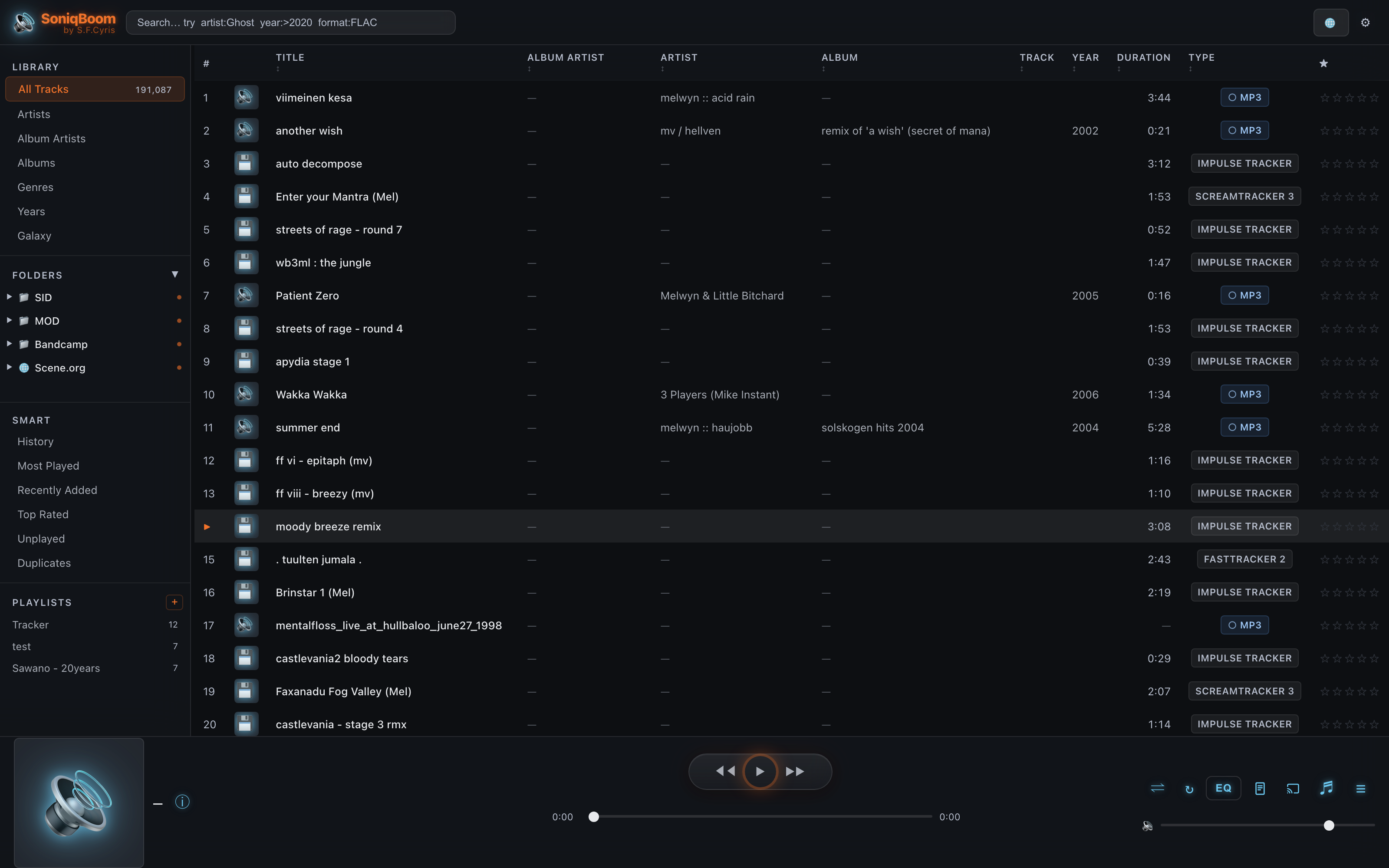
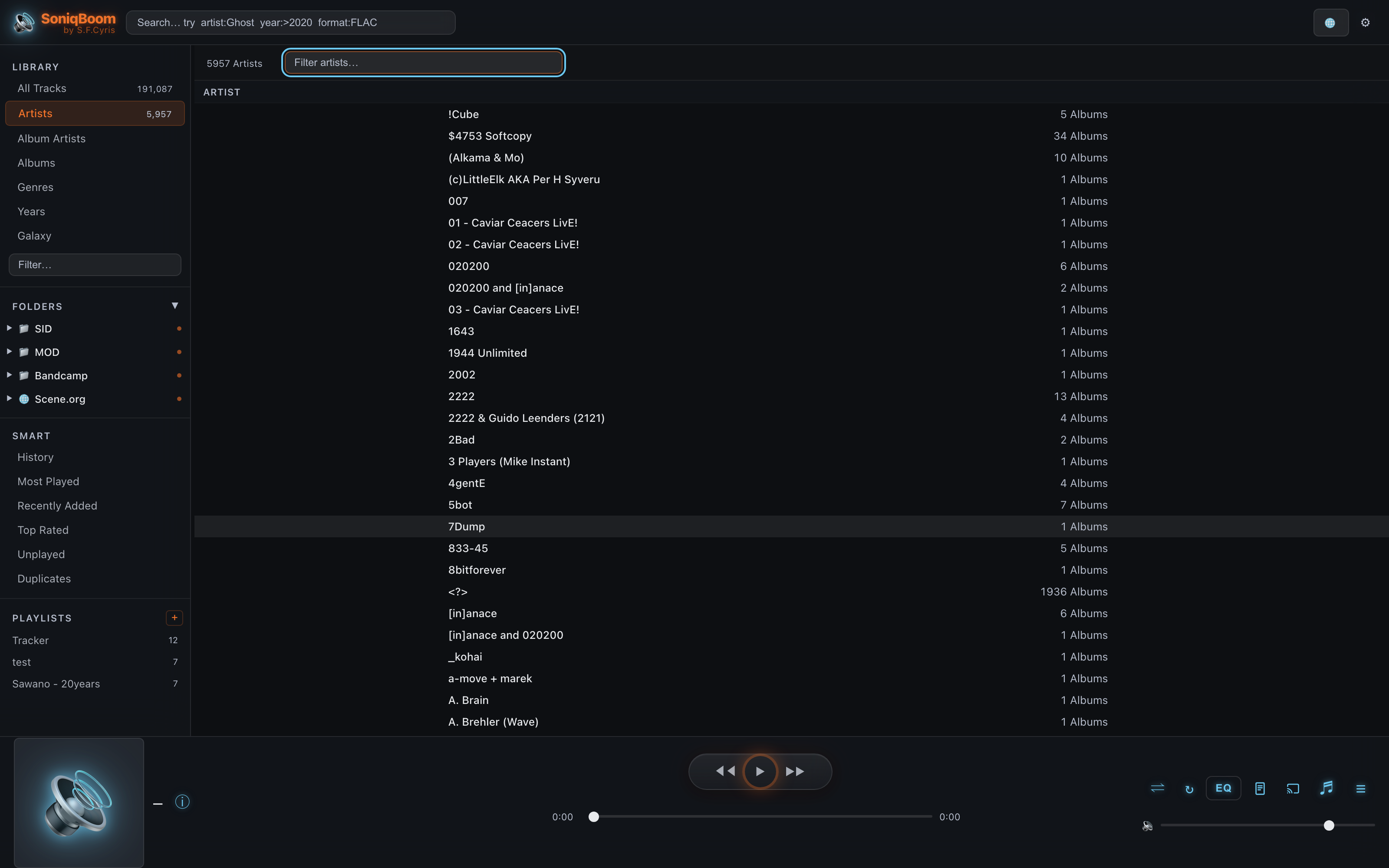
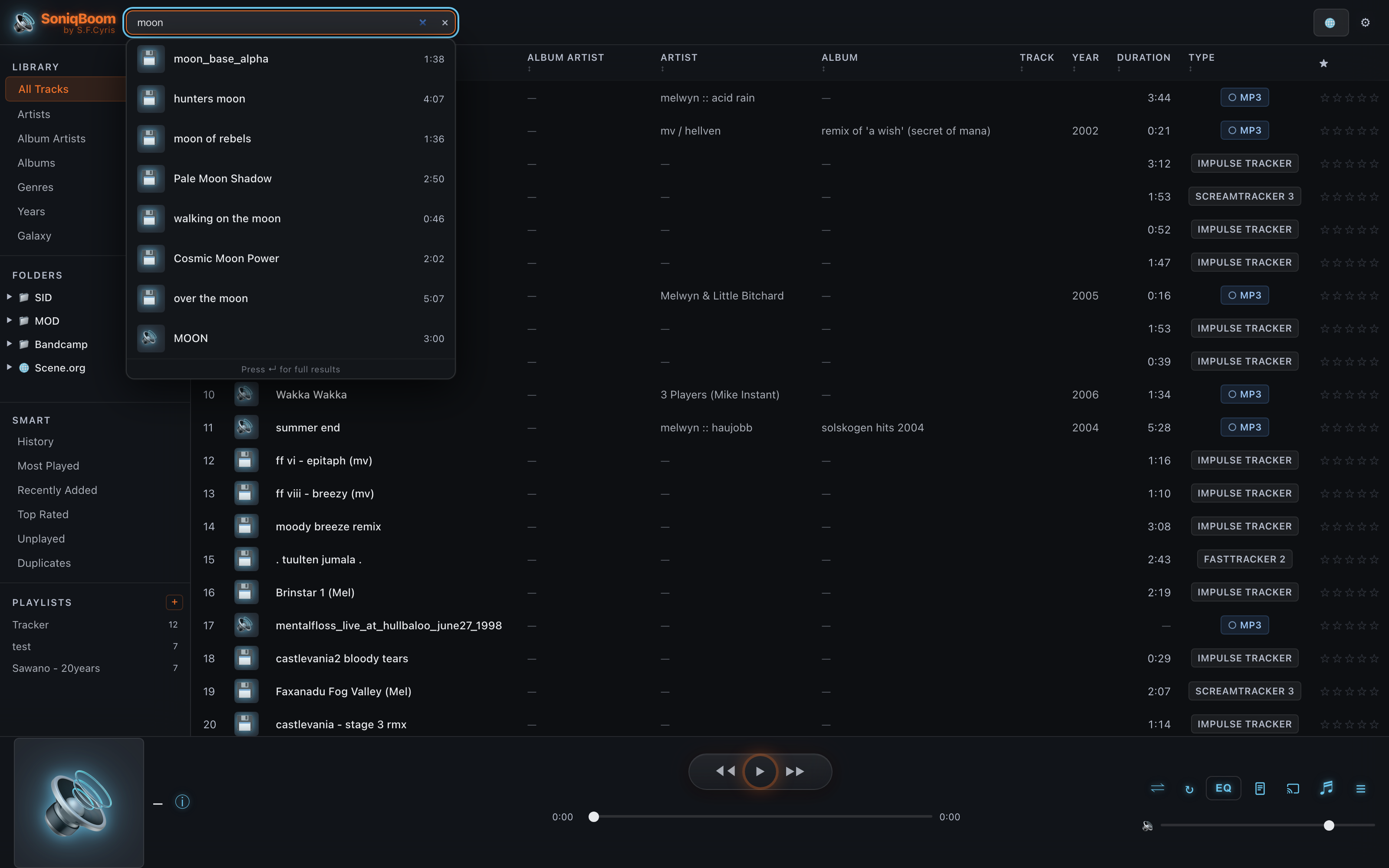
All Tracks, Artists, Albums, Genres, Years — plus folder trees that mirror your shares, and instant search.
Getting around a big library
Any track list has Play all and Shuffle buttons in its header — browse to a genre, artist or album and start it playing in one click, or press P to play and Shift+P to shuffle. Long track and group lists show an A–Z rail down the left edge — click a letter to jump straight to that part of the list. Right-click any track for Go to artist or Go to album to pivot to everything by that artist or on that album. And the ⌾ Locate button on the player bar — or the G key — scrolls the list back to whatever's playing, which is marked with a small animated equalizer. If part of a long list can't be loaded from the server, its rows say so and offer Retry.
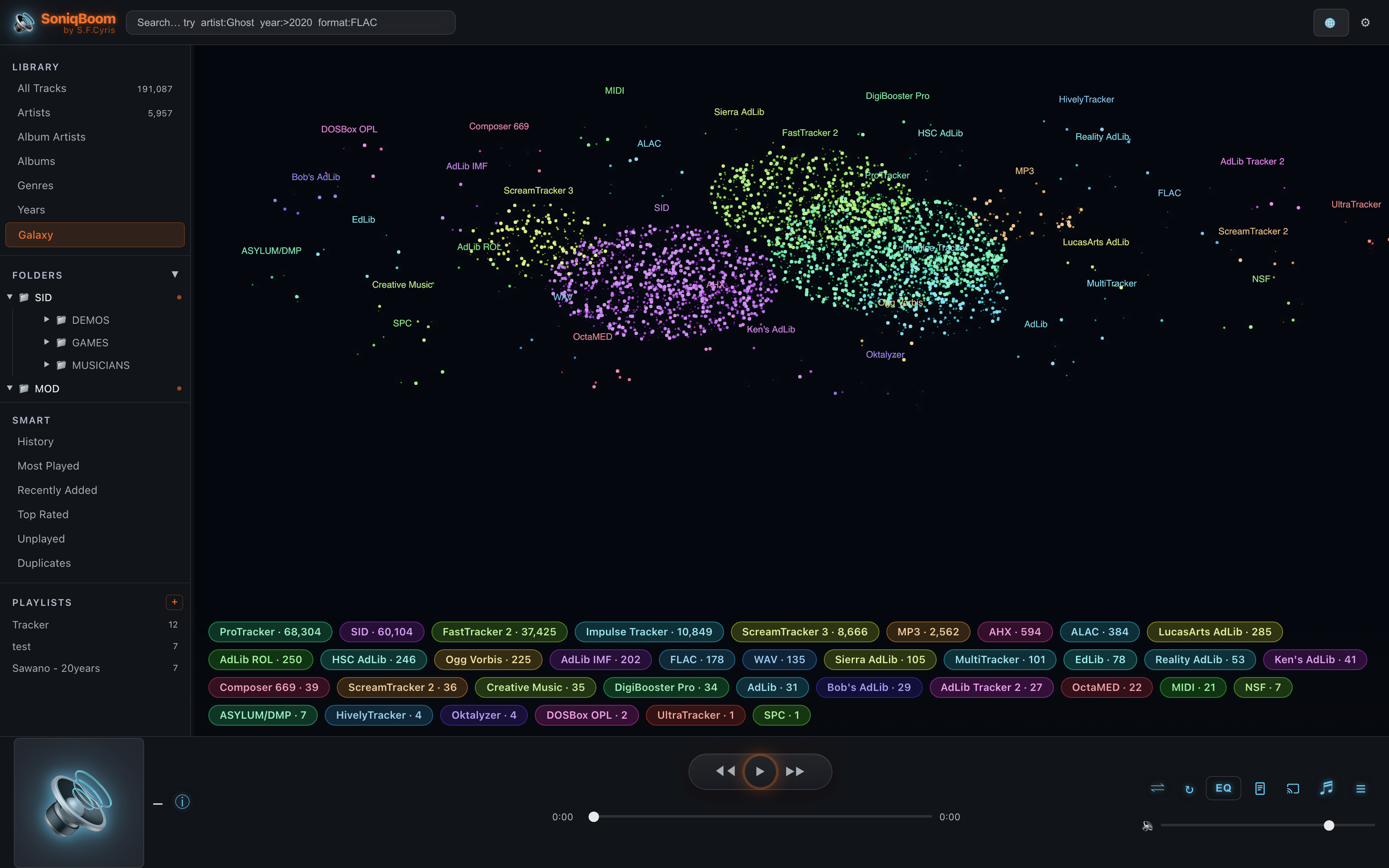
The Library Galaxy
Every track in your collection rendered as a drifting star-field — each format its own glowing constellation, sized by how much of it you own. The legend doubles as a census of your library.
04Find anything
A search bar that understands field operators, and smart views that surface your library by listening habit.
Search with field operators
Type anything to search titles, artists and albums at once. Narrow it with field operators — stack as many as you like:
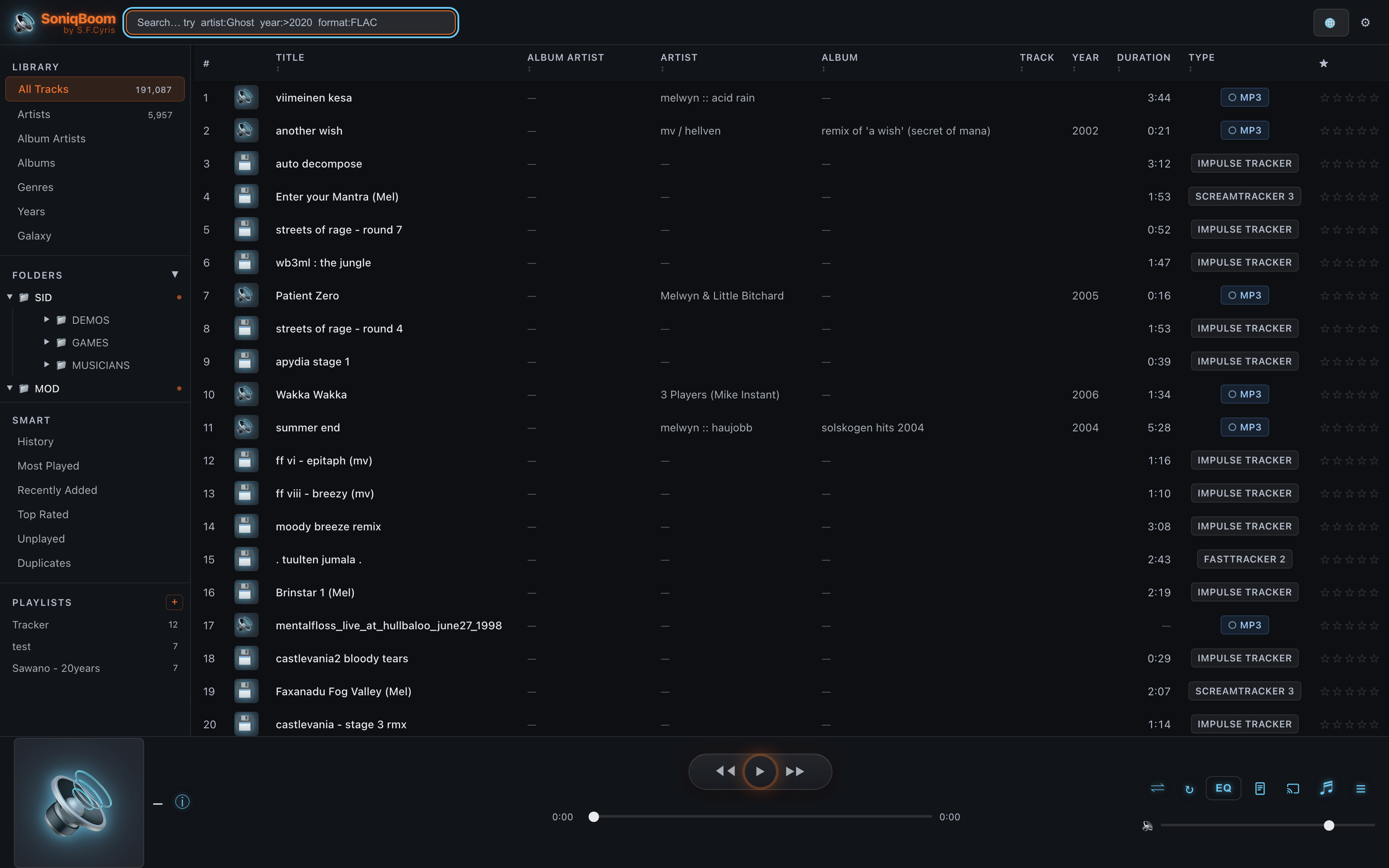
artist:Ghost album:Impera year:>2020 format:FLAC
| Operator | Matches |
|---|---|
artist: album: album_artist: genre: | That field only. |
game: | A game: matches the start of any name of a track's game — for a retro tune the names its file header, Modland, Demozoo, the song database, a Modland file name, its archive's name and its folder name give it, or an album you set; for any other music file its GAME tag; or a game you typed — and, for a C64 SID or Atari ST tune whose game is unknown or only taken from its folder name or a Modland file name — not one you typed or cleared — the start of its title; case, accents, extra spaces and a leading “The” are ignored — game:uridium finds the game “Uridium” and a SID titled “Uridium 2”, game:"last ninja" also finds “The Last Ninja”, game:"the last ninja" also finds “Last Ninja 2”, and game:pokemon also finds “Pokémon Gold”. |
year:2003 · year:>2020 · year:<1990 · year:1985-1990 | Exact year, after / before a year, or a range. |
format:FLAC · format:SID | Restrict to one format. |
artist:"The Ghost Inside" | Quote any value containing spaces. |
field:) is flagged in the preview instead of silently returning nothing.Smart views
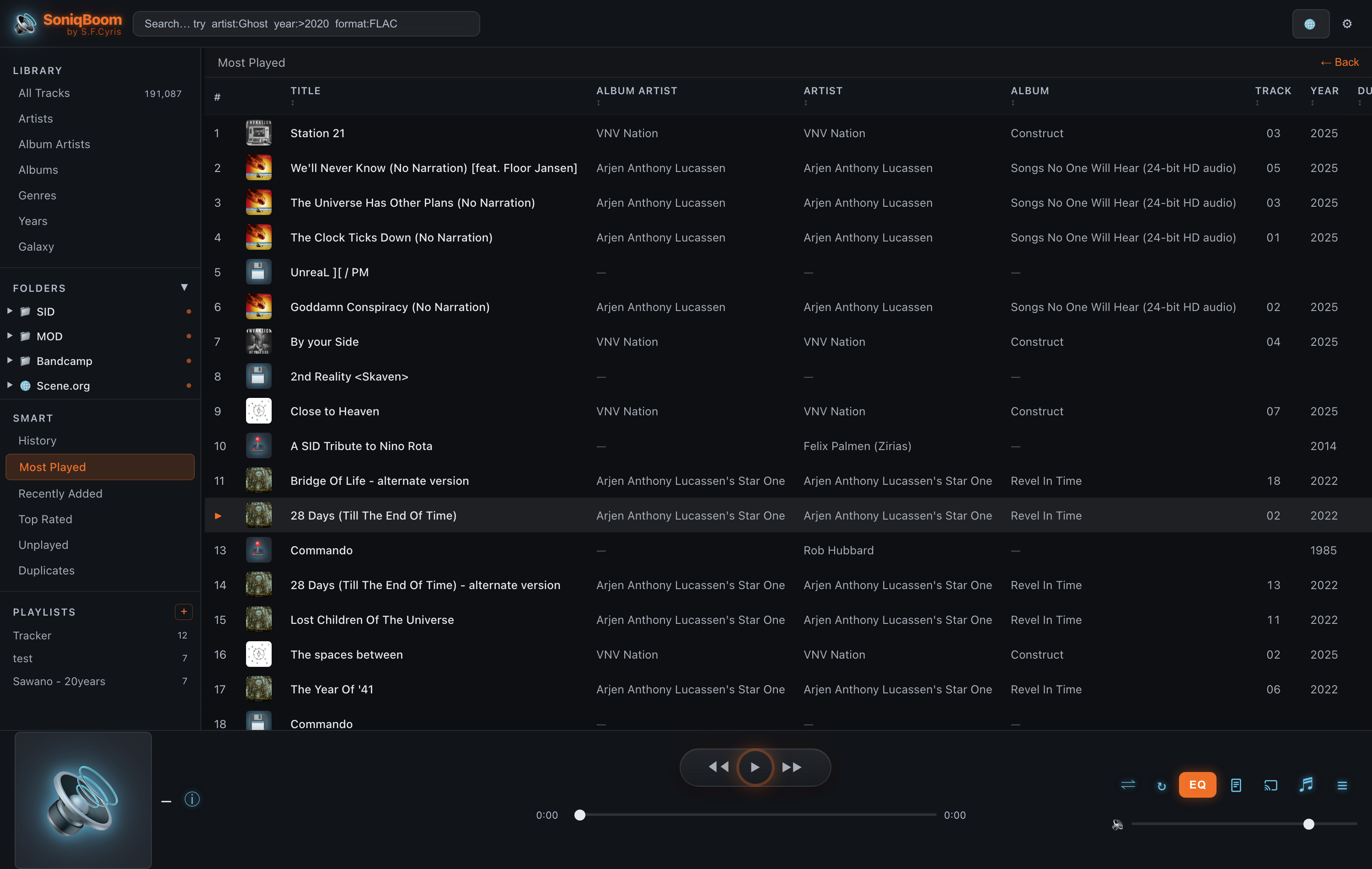
The sidebar's Smart section builds these on the fly from your play history and ratings:
Listening History
Everything you've played, most recent first.
Most Played
Your highest play-counts, ranked.
Recently Added
The newest tracks the scanner found.
Top Rated
The tracks you've starred highest.
Unplayed
Everything you haven't heard yet.
Duplicates
Likely duplicate tracks, grouped for cleanup.
Instant Mix radio
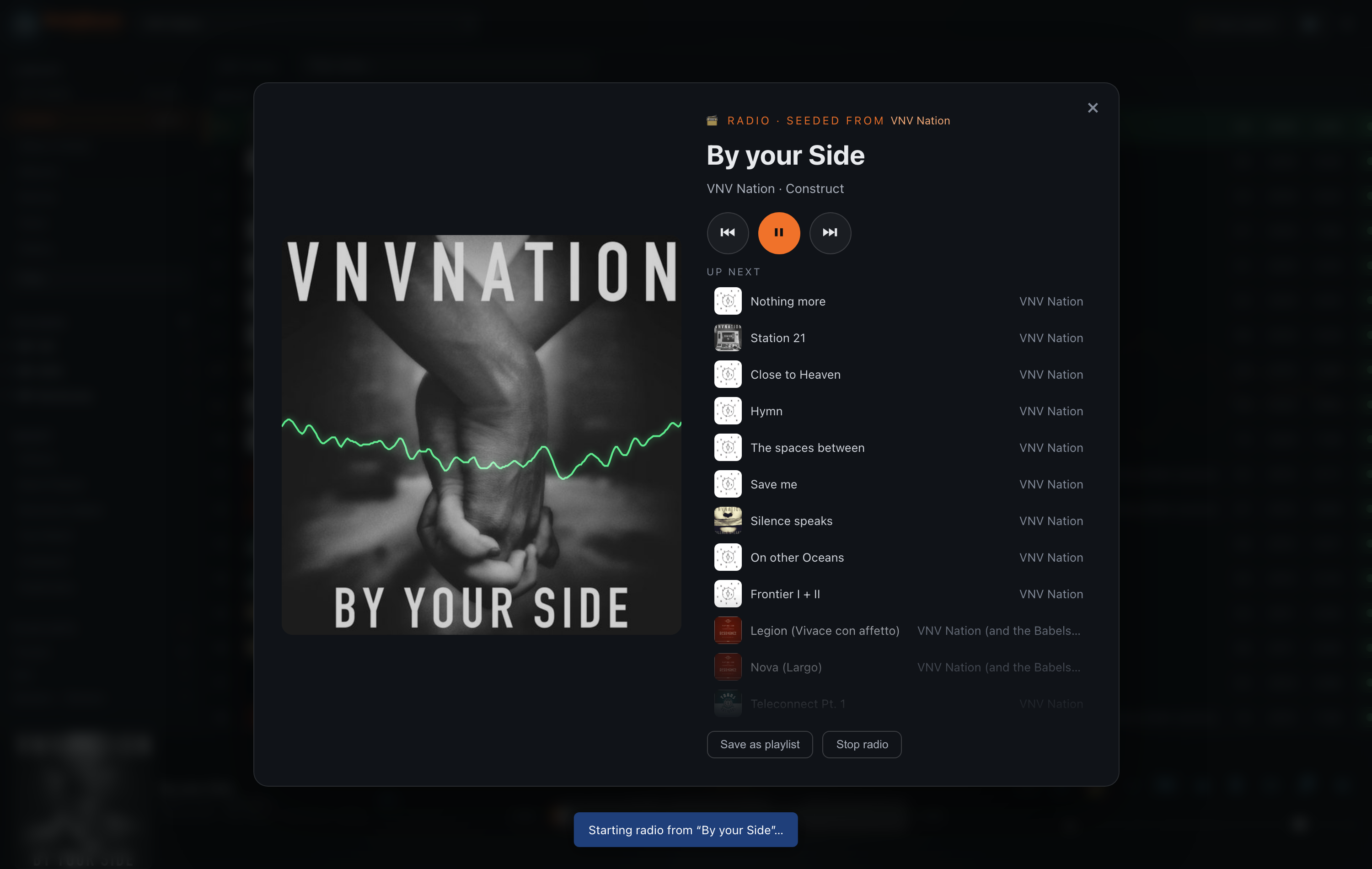
Press the 📻 radio button in the player toolbar while anything is playing and SoniqBoom builds an endless queue around it — tracks picked by genre, artist, era, tempo and format, spread across artists. A SID radio stays chiptune, a FLAC radio follows the genre. The queue refills itself as you listen, seeded from whatever is playing now.
Radio view. Starting a radio opens a full radio view: the cover art large with a live oscilloscope playing across it, the track that's on, and the upcoming tracks with their covers — the list fades out at the bottom because more is always coming; click any entry to jump to it. Save as playlist keeps the mix. Leaving the view — Stop radio, Esc or the × — ends the radio; the tracks already queued keep playing.
More like this
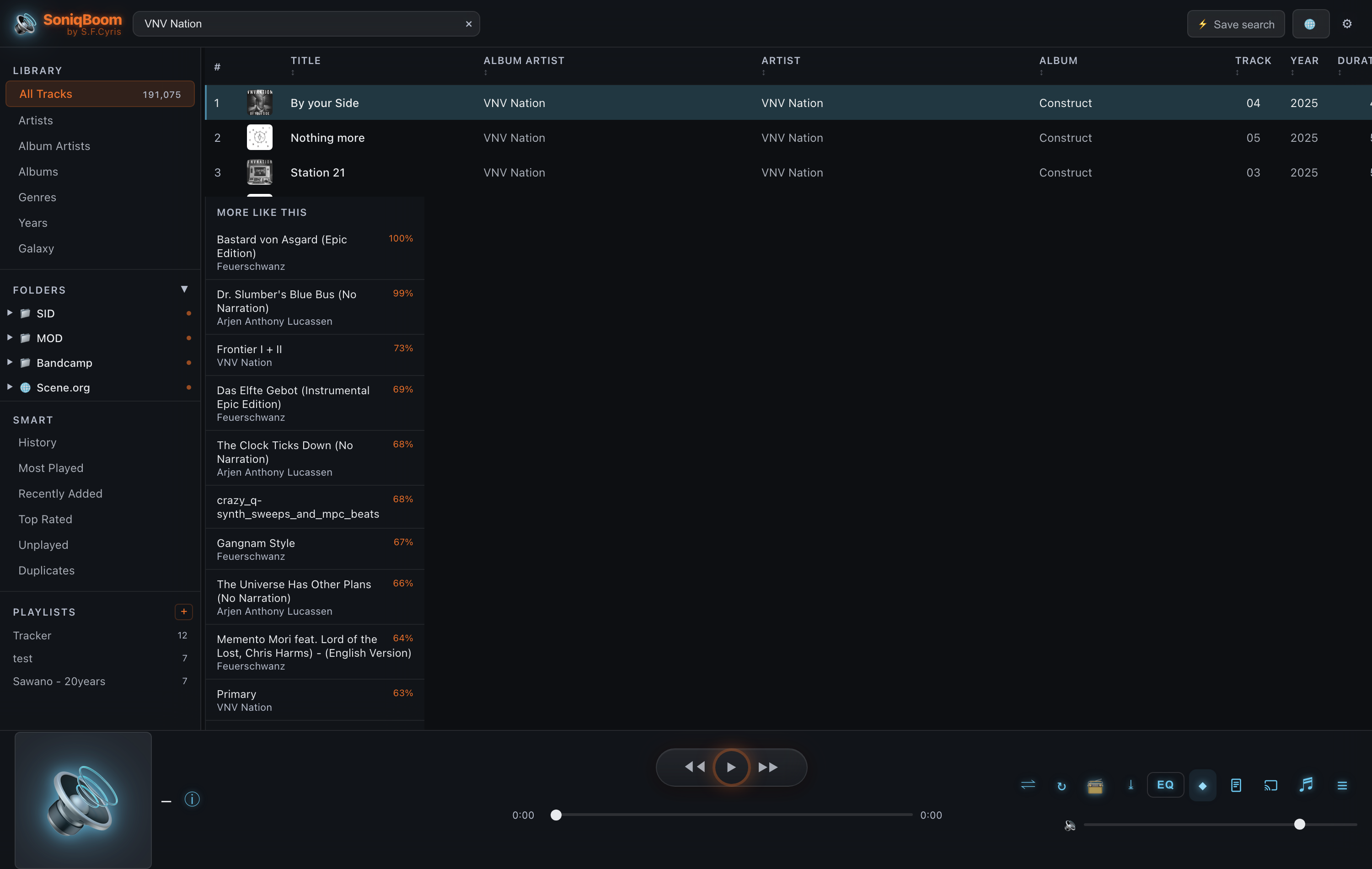
Select any track in the list and press the ◆ button in the player toolbar — a panel lists the closest matches with a relative similarity score. Tracks that have been played before are also compared by their loudness contour — songs that move the same way rank higher. Click a result to play it.
05Playlists
Hand-built collections that stick, and saved searches that keep themselves current.
Build a playlist by hand
Open the Playlists panel from the sidebar's Playlists section or the Playlists button in the player toolbar, then press + New to start one and name it. Add tracks two ways: select any rows in the library and click + Playlist to drop them into an existing list — or a brand-new one — or drag them straight into the panel. Inside a playlist a drag handle reorders tracks, and you can grab several at once to move them together. Delete a playlist whenever you're done with it.
Smart playlists — save a search
Any search can become a playlist that keeps itself up to date. Type a query — say
format:SID year:>1988 — and press ⚡ Save search next to the search box.
Name it, and it appears under Playlists with a ⚡ marker. Opening it re-runs the
saved search, so new tracks that match are included automatically. Smart playlists work in
Subsonic apps too.

06Internet radio
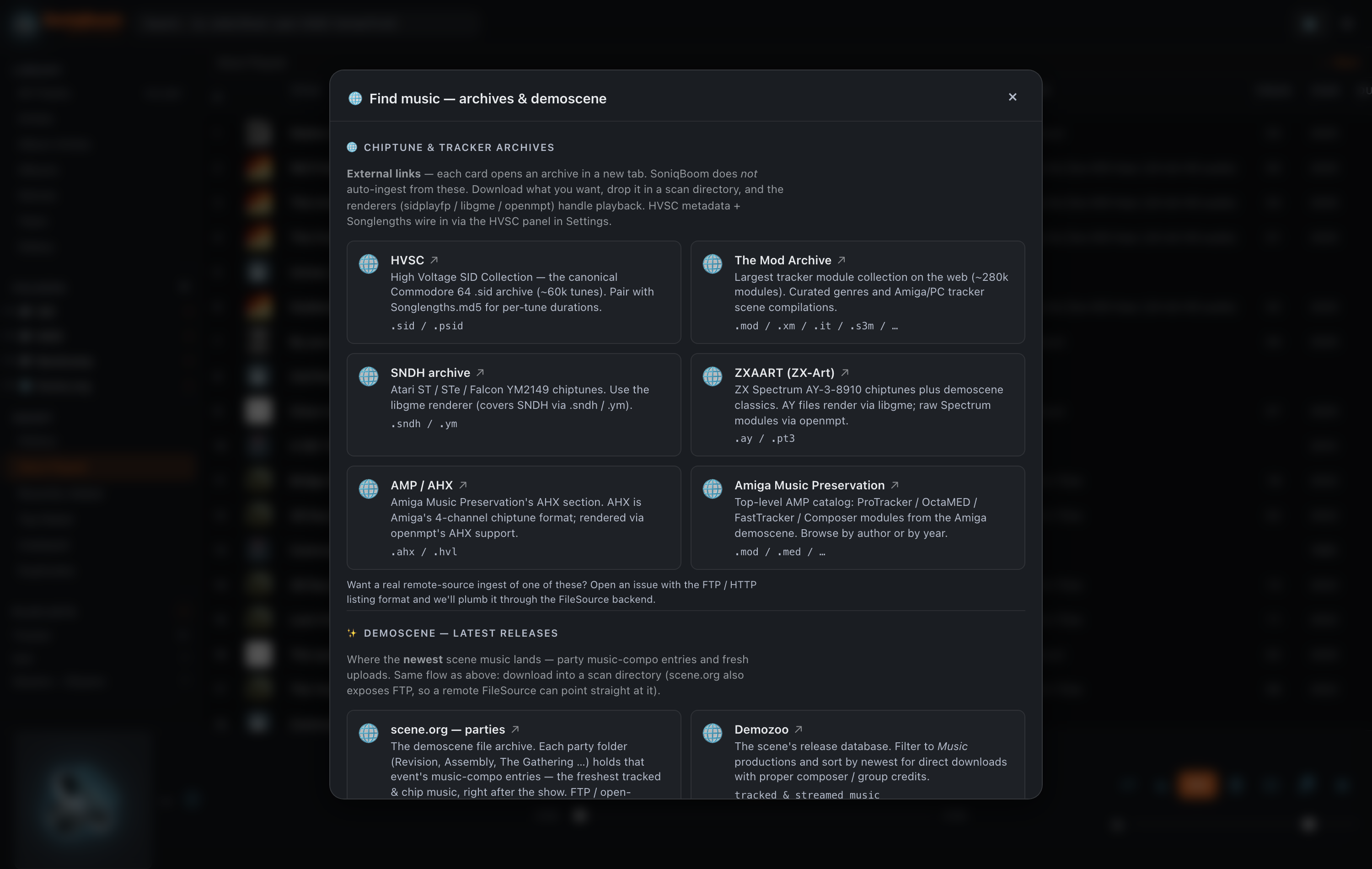
A hand-picked demoscene & chiptune station pack, plus the worldwide directory — every stream relayed through your own server.
The sidebar's Stations section plays live internet radio. It has three lists:
- Favorites — the stations you've starred. Nectarine Demoscene Radio is there to start.
- Scene — a curated pack of demoscene, chiptune, SID and game-music stations: SceneSat Radio, Nectarine Demoscene Radio, SLAY Radio, Kohina, Radio PARALAX, CVGM.net, Rainwave Chiptunes, Rainwave Game Music, OverClocked ReMix Radio, Keygen-FM and CGM UK DemoScene.
- World — the worldwide Radio Browser directory, browsed by continent → country, then split into Top 10, Top 11–50 and Remaining by listener votes.
Search the directory from the box in the Stations header, or straight from the main search bar at the top — matching Stations are listed alongside your music, and Show all → (or pressing Enter while the Stations view is open) opens the full list of matches.
Click a station to play it. SoniqBoom relays the stream through your server, so stations play in the
browser whatever they're built on — classic Icecast / SHOUTcast, modern HLS, or a
.pls / .m3u / .xspf / .asx playlist that just points at
the real stream. Playback starts at the highest quality your browser supports and steps down
automatically if the stream can't keep up; stations that offer several qualities appear once, under one
name. The player shows the station and the track that's on air, and the ★ button adds or removes it
from Favorites.
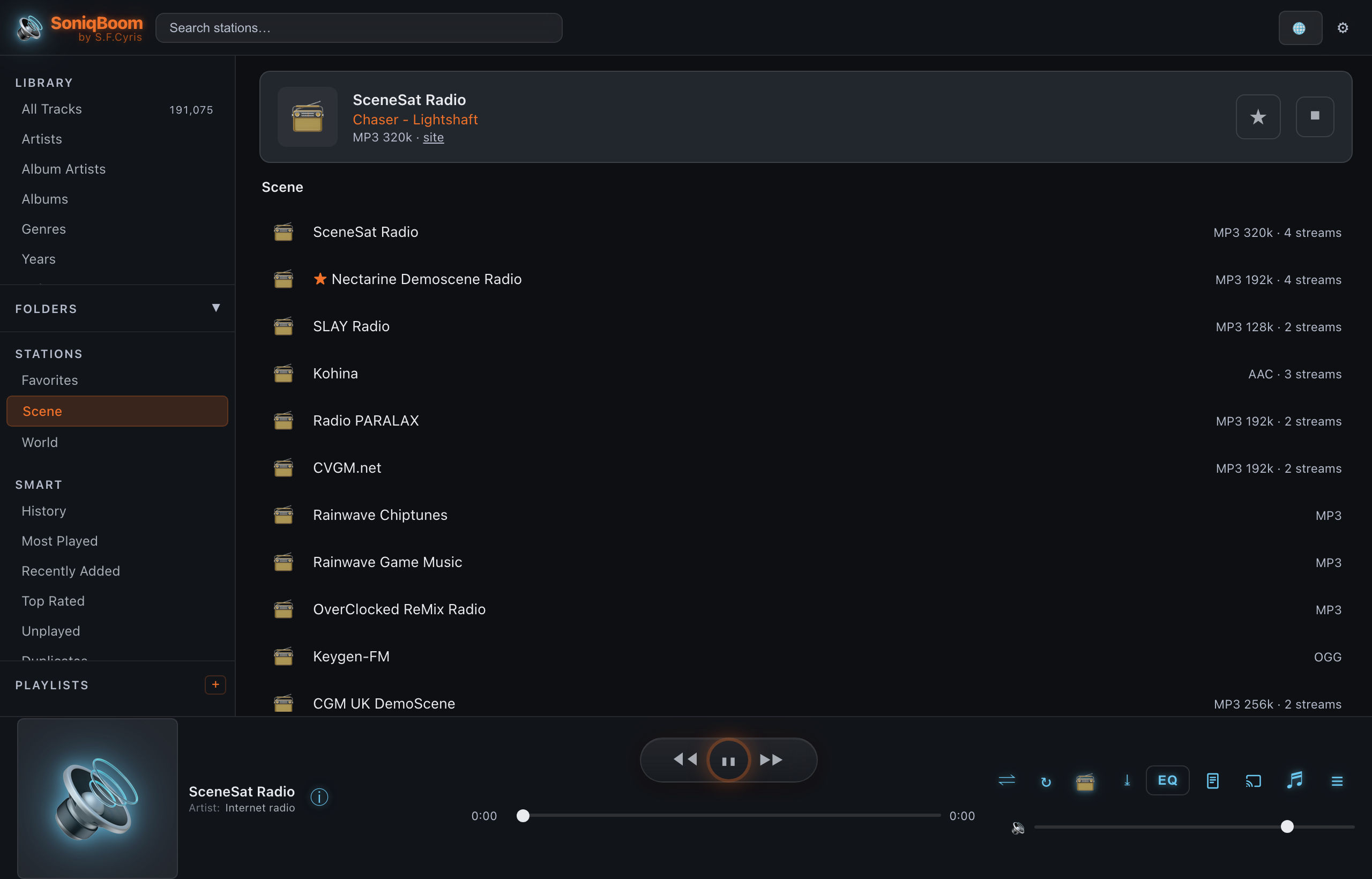
Live now-playing. As each song changes, the current track's title appears in the player — split into artist and song when the station provides it — read from classic ICY stream metadata and the in-band metadata modern HLS streams carry. When a track is announced, SoniqBoom looks up matching cover art and shows it in place of the station logo; if there's no confident match, the station's own logo stays. Community vote counts ride along, and playing a directory station reports the play back so the popularity rankings stay accurate.
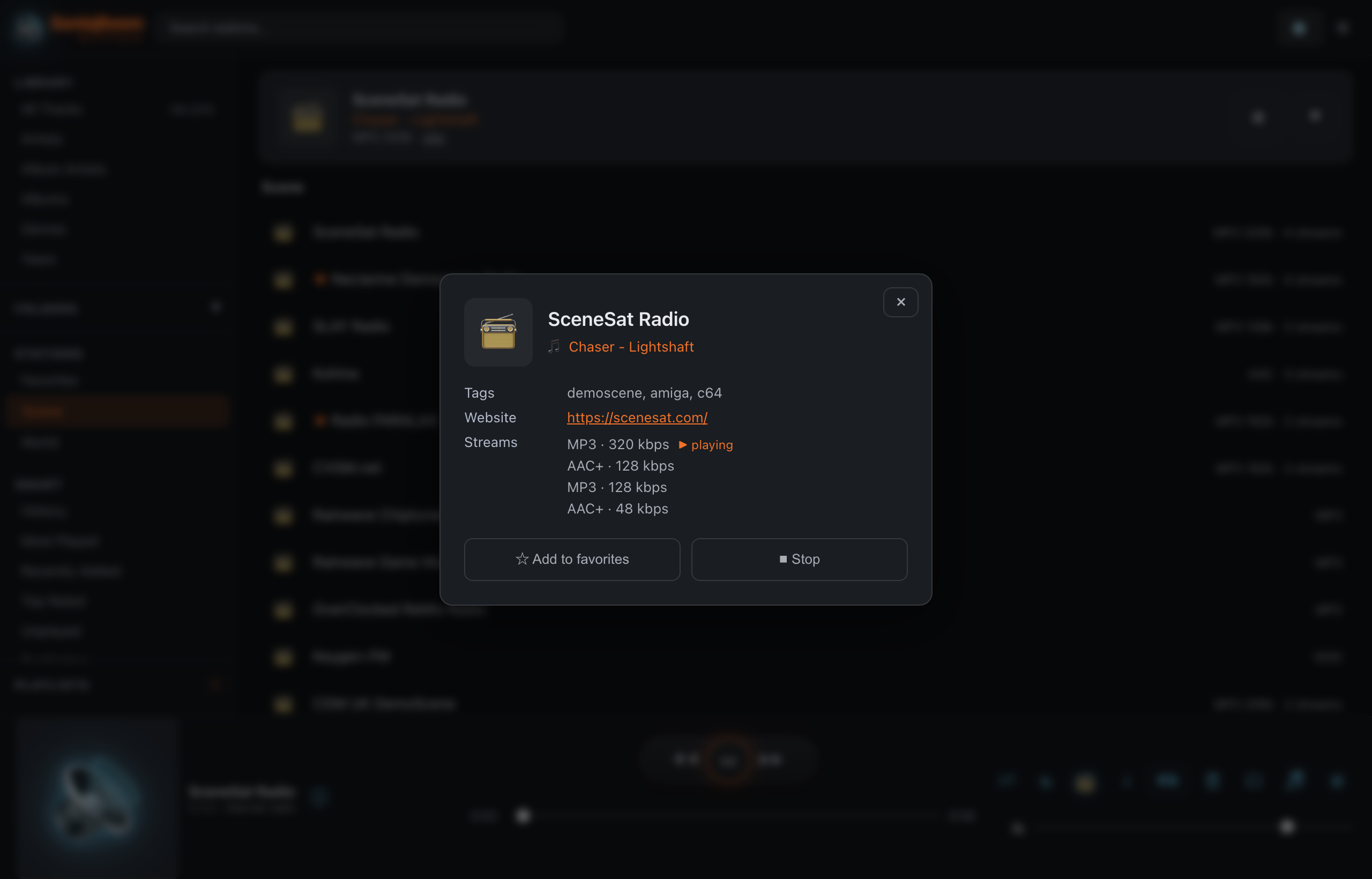
Station details. While a station plays, the ⓘ button in the player toolbar opens its details — tags, website, the live now-playing title, and every available stream with the one you're hearing marked.
07Now playing
Click any track and it plays — even a 1987 SID tune or a 64-channel tracker module, rendered to audio on the fly.
Per-channel VU meters for tracker modules
Open any module and SoniqBoom shows a meter for every voice in the song — Paula channels, sample slots, OPL operators — dancing in real time, alongside the module's real metadata: channel and pattern counts, instrument names, and the embedded text messages trackers are famous for. A live signal path traces the exact decode chain for the playing track.
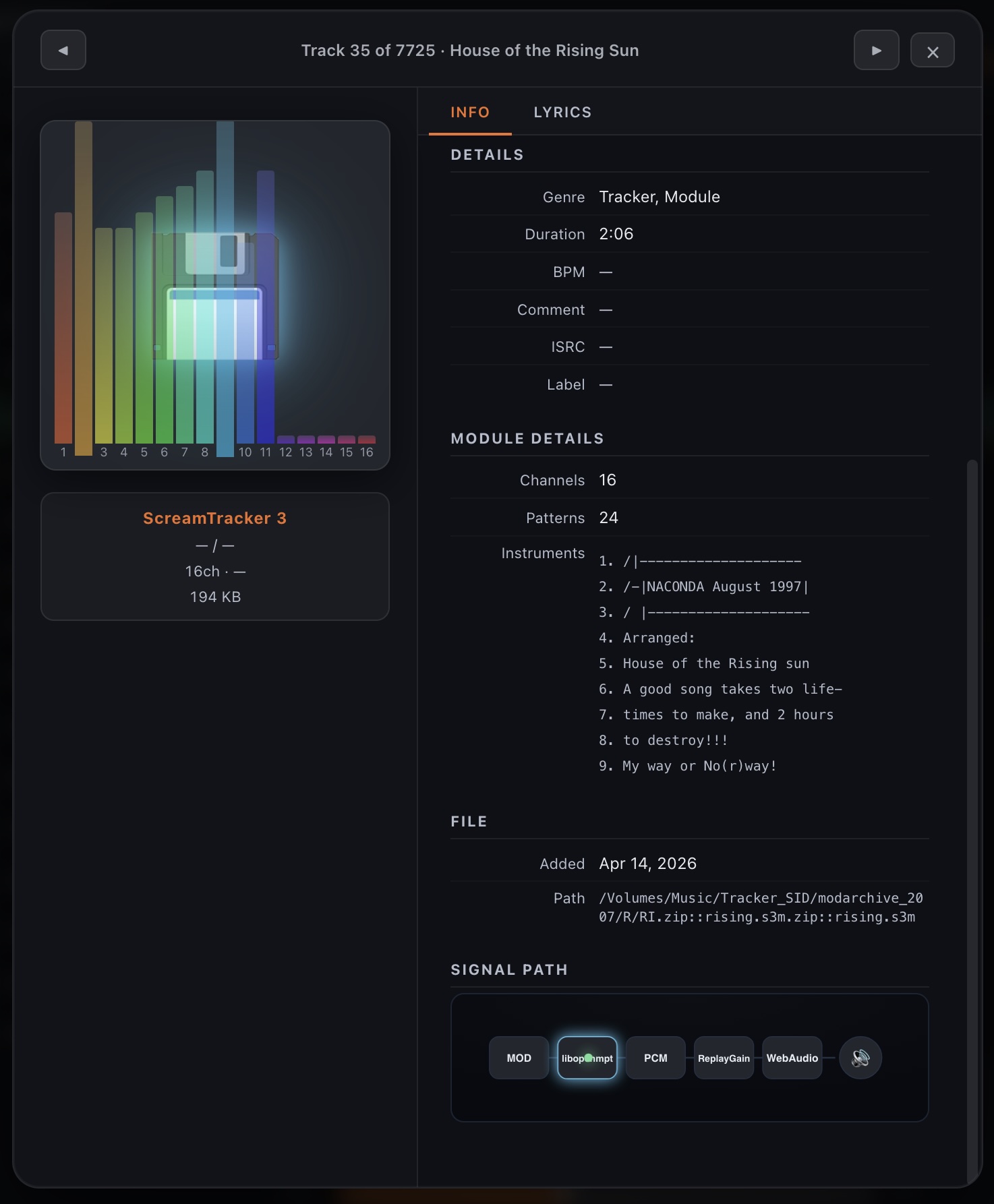
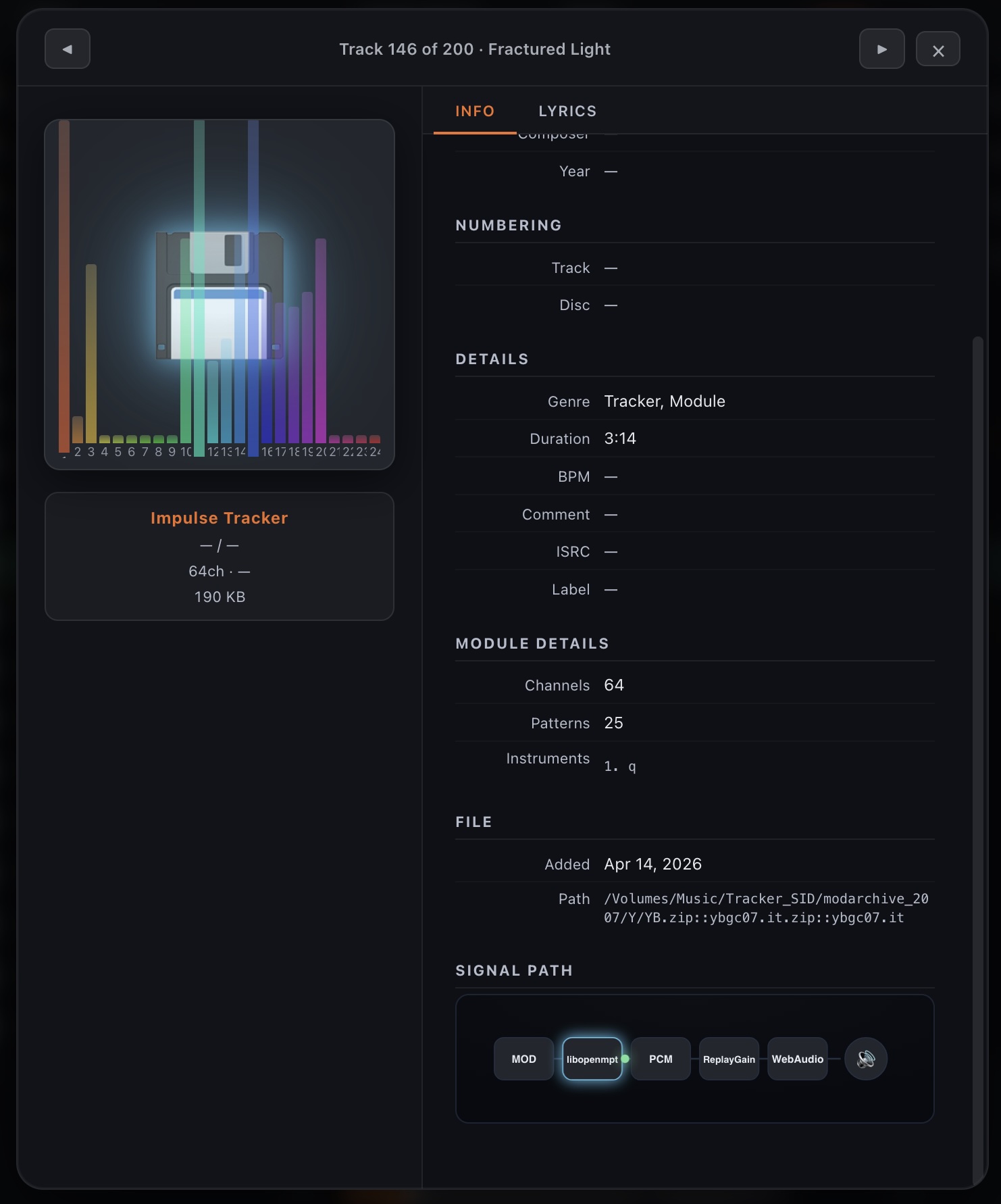
The pattern view — watch the module play
Open Track Info (the circled-i button, or right-click a row) on a tracker module and the panel leads with the module itself: channels, patterns, instruments — and a live pattern grid. Each pattern is laid out tracker-style — note · instrument · volume · effect — with the song's pattern order strip above it to jump anywhere. With Follow on, the playhead row tracks playback and the grid scrolls with the music, and every channel's column glows with its live level, in the same colour as its meter bar. Track Info is tidier for every format now: each file shows only the fields it actually has.
Modules that carry a song message — greets, release notes, ASCII art — show it exactly as written, spacing and all. A Made with row names the tracker software when the file records it, and BPM comes straight from the module's own tempo.
Multi-song files — the tune picker
A single SID, SNDH, AHX, Amiga, tracker or console-rip file (NSF, NSFe, GBS, AY, SAP) often holds many separate tunes — a game's whole soundtrack in one file. Open Track Info on one and a tune picker lists every subsong: ▶ play, + queue or ☰ add any one to a playlist, or Play all, Add all and shuffle the whole set at once — and those single-tune picks live happily inside playlists alongside ordinary tracks. When a SID is part of the HVSC collection, each tune shows its real name and length from the Songlengths and STIL databases — so Tune 3 / 6 reads "Assembly" rather than a bare number — with the full STIL commentary below and the chip model shown as a 6581 / 8580 badge.
Playing the file itself starts at its default tune, marked default in the picker: the start song a SID or SNDH file names, and for Amiga player formats (played by UADE), console rips and SC68 disks the first tune that isn't empty (tracker modules start at tune 1); a tune you pick plays that tune. On the phone, Now Playing lists the playing file's tunes below the controls; tap one to play it, and its number follows the title. A tune that renders to silence shows “This tune plays only silence” instead of playing — in the web player, a very long C64 tune from its second play on.
Equalizer & visualizer
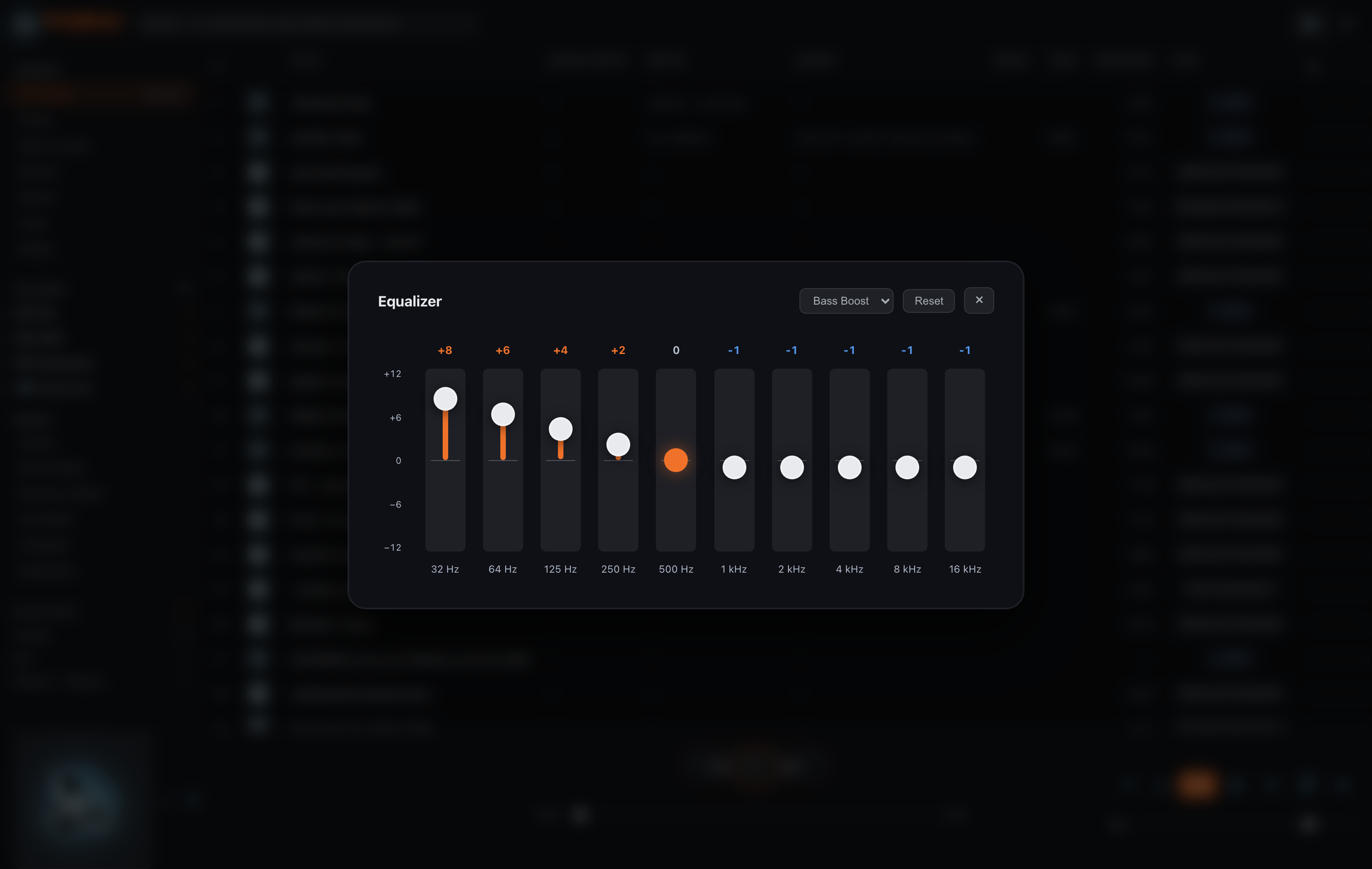
A built-in 10-band graphic equalizer (32 Hz–16 kHz, ±12 dB) shapes the sound band by band — toggle it with E, and choose from genre presets or drag the bands by hand. A full-width visualizer plays behind the track list and cycles through its modes with V — oscilloscope, retro CRT scope, scrolling spectrogram, hyperspace tunnel, synthwave grid, wireframe globe, cosmic eye, lava lamp, and a singing raccoon. The visuals respect your system's reduce motion setting and pause when the tab is hidden.
Time-synced lyrics
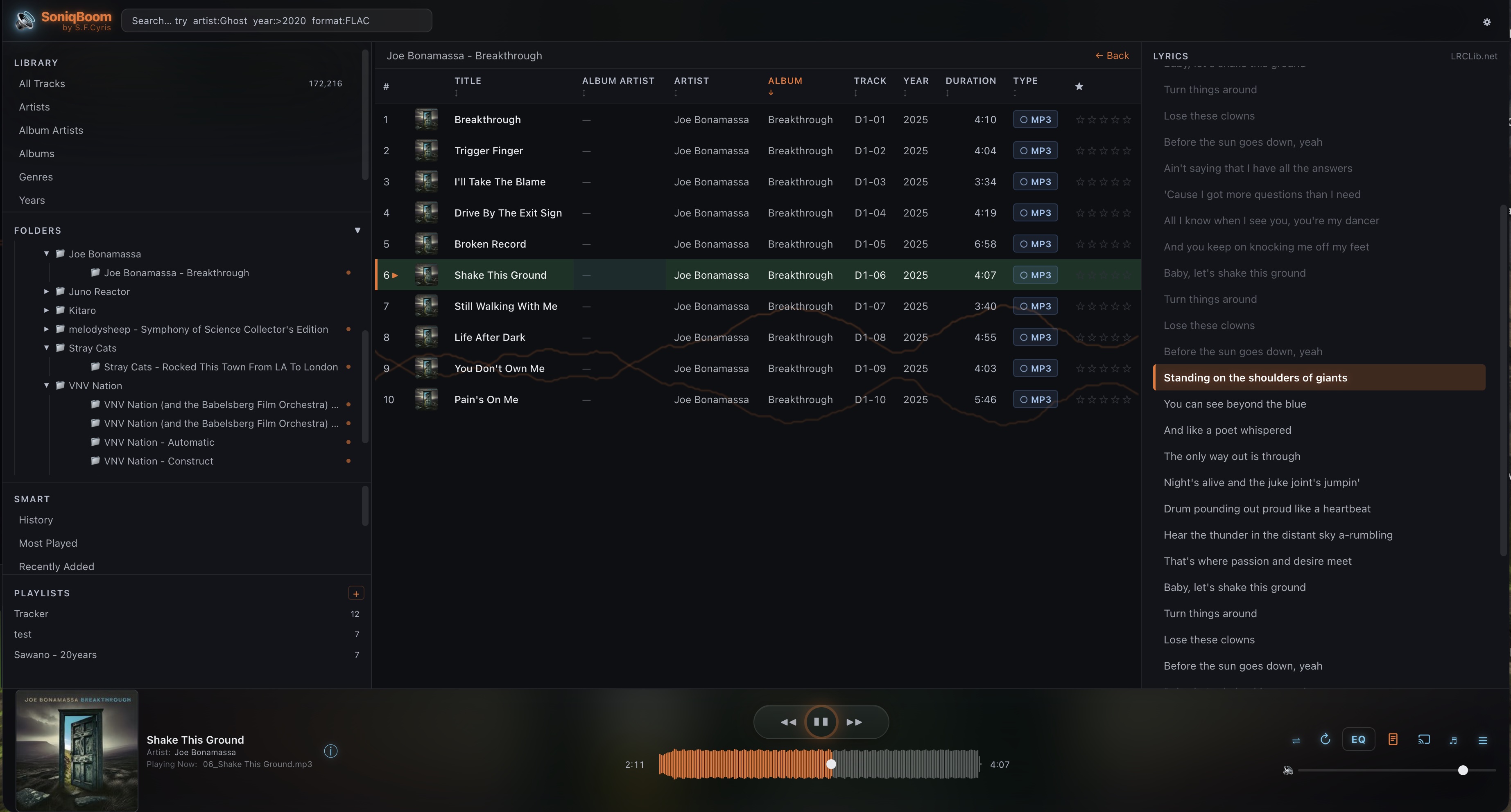
Lyrics scroll line-by-line with playback — read from the file's own tags, or fetched from LRCLib when the file has none embedded.
Podcast & audiobook chapters
For files that carry chapter marks — MP3 podcasts and .m4a / .m4b / .mp4
audiobooks — open the Track Info panel (the circled-i button) to see a
numbered Chapters list. Tap any chapter to jump straight to it.
About the artist & tag editing
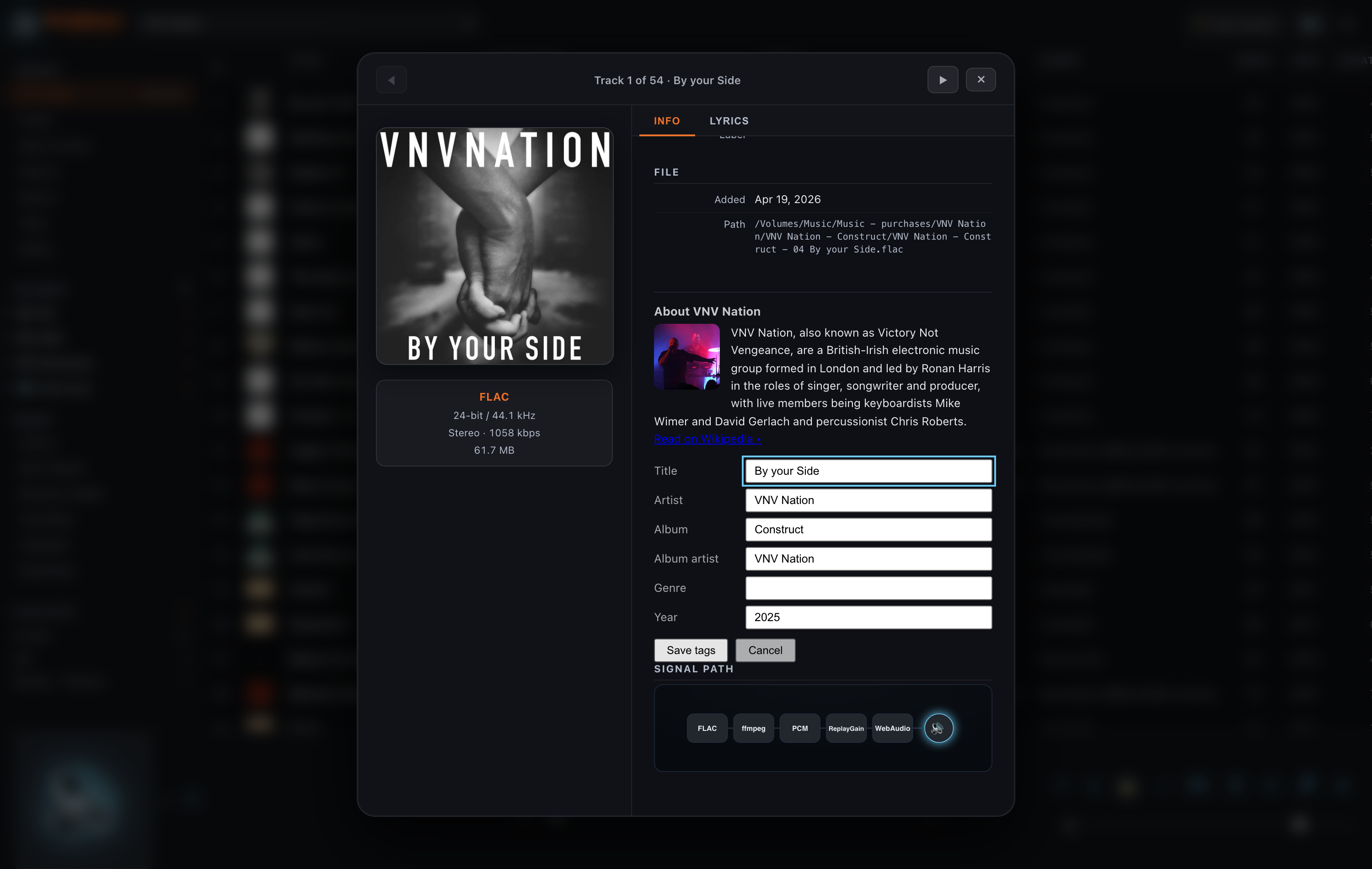
The Track Info panel also shows an About the artist card — a short bio and
portrait, with a link to the full article — whenever the artist has one. The artist is matched
through MusicBrainz using the album and track you're viewing, and the bio comes from the matched
artist's Wikipedia page: "Ghost" on an Impera track is the Swedish band, not the apparition.
Below it, ✏️ Edit tags opens an inline form for title, artist, album, album artist, game, genre
and year: Save tags writes the changes into the audio file itself (the game as a GAME tag) and
updates the library at the same time. This works on local MP3, FLAC, M4A, Ogg, Opus, WavPack and Musepack files; every
other track — network shares, archive members, modules and chip formats — gets ✏️ Edit info,
which changes the library only. The Game row shows the game the music belongs to: a retro
tune's game (usually the same name as its album, and an album you set is its game), with a note saying where it
came from, or the GAME tag of a remix. When the file header, Modland, Demozoo, the song database, the archive name or the folder name call
the game something else, those names follow on an also line (a name that is only the start of another
one is not repeated) — game: finds the track by any of them. The folder name counts only while Album from folder name for retro formats is on, a Modland
file-name guess only while Guess game from Modland file names is on, and the archive name only while
Game from archive names is on.
Scene origins
Retro module files rarely carry proper tags — but the scene has spent decades cataloguing them. In
gear → Metadata → Scene origin (Modland) SoniqBoom fingerprints each module and matches it against
the Modland index, filling in the original
author and adding a Scene origin row to Track Info that shows exactly where the tune sits in the
archive — Modland: <format>/<author>/…. Refresh the index and apply it from the same panel.
Chip-music files that store their game's name (SPC, NSF/NSFe, GBS, VGM/VGZ, and PSF-family rips such as PSF,
USF, GSF, 2SF or SSF) show it as the album and the game;
other music files (MP3, FLAC, M4A, Ogg, Opus …) can carry a GAME tag. To read them again — the chip-music files
whose game has not been read from the file yet, and every other music file's GAME tag — use
gear → Metadata → Game names from file tags → Read game names (the other details read from those
chip-music files, such as titles, are refreshed too); untick Include network shares to read only local
files. From an FTP or SMB share, an MP3, FLAC or M4A file is read only as far as
its tags where the file allows it (files inside archives are read whole), and Cancel stops
the run after the current file. A Modland
match also fills an empty album with the game the tune belongs to. With Guess game from Modland file
names (on by default), Amiga and tracker modules with an exact Modland match can take the game from the
Modland file name such as gold of the aztecs-intro when the track's title matches the part after
the dash and either other files in the same Modland folder share the game prefix, or the part starts with a
usual tune-part word such as intro, title, ingame, level or
gameover (an Amiga custom-format tune, whose title is its file name, needs other files in the
same Modland folder to share the game prefix). Such a game is spelled as the game title lists spell it when
they know it on the track's platform — backtothefuture3-intro gives “Back to the Future III”,
chuckrock 2 “Chuck Rock II” — and as the file name has it otherwise; these
guessed albums carry a small “guessed from Modland file name” note in Track Info. An album you typed is
never replaced. An album from the file itself is kept too, except that an exact Modland match completes an
SPC game name that the file's tag cut off at 32 characters. Turning the option off removes only the albums
it guessed.
In gear → Metadata → Song database (audacious-uade-tools), Download fetches the song database of the audacious-uade player (about 27 MB) from GitHub and Apply to library matches your modules against it by checksum. An exact match fills what is still empty: the artist, the label (the publisher or group), the album (the game or production — it also replaces an album guessed from a folder or a Modland file name), the year and — for many Amiga modules not played yet — the length. A production name that several groups used carries the group, e.g. “Megademo (The Silents)”. While Re-apply automatically after each library scan is on (the default), a download and every scan apply it too. Reset enrichment removes the artists, labels, albums and years it filled and turns the automatic re-apply off; lengths stay. Tags in your files and anything you typed are never replaced, and a year from the database is marked in Track Info. The database is audacious-uade-tools by Matti Tiainen, compiled from about 400 scene sources and licensed CC BY-NC-SA 4.0.
Where a game's name comes from
A game you typed, or an album you set on a retro track, is always its game. Otherwise a retro track's game is the first name these sources give it, in this order:
- The file itself — the game in an SPC, NSF/NSFe, GBS, VGM/VGZ or PSF-family header, or a GAME tag.
- Modland — the game folder of the tune's exact Modland match.
- Demozoo — the game Demozoo lists the tune as the soundtrack of, when the tune's composer and title match and the tune is named after that game (“Rick Dangerous”, “High Technique (tune 3)”); from the Demozoo index under gear → Metadata (an index downloaded by an earlier version needs a refresh for this).
- The song database (audacious-uade-tools) — the game of an exact checksum match.
- A Modland file name such as
gold of the aztecs-intro, while Guess game from Modland file names is on — spelled as the game title lists spell it when they know it. - The archive's name, when it is the name of a known game of the track's platform, while Game from archive names is on.
- The folder or archive name, while Album from folder name for retro formats is on.
The names the other sources give are the game's other names: Track Info lists them on the also line,
and game: finds the track by any of them.
Game names from archive names
A retro track inside an archive takes the archive's name as its game when that name is a known game of the
track's platform — Turrican.lha for Amiga TFMX tunes, Super_Mario_World.zip for SNES SPC rips.
The name is compared with the game titles of the platform only: a SID with C64 games, an Amiga module with
Amiga games, a YM or SNDH tune or an Atari ST player's tune with Atari ST games, an AdLib or Sierra AGI tune
with DOS games, an SPC with SNES games, a PSF with PlayStation games, and so on; case, accents, punctuation, a
leading “The”, Roman numerals, dots between letters and region tags such as “(Europe)” are ignored, a name
written without the spaces a title has matches it (Megaman2.zip is “Mega Man 2”), and the
game is shown as the title list spells it. Skipped are generic names (music, intro, disk 1 …), names of a part of a game's music,
pure numbers, any name the archive's own tunes credit as their composer, artist, group, label or releaser,
and an archive that holds a single tracker module or SID named like it (such as axelf.mod.zip); the
next archive out is looked at instead. A one-word name shorter than eight letters needs two title lists of
the track's platform to agree, and a tracker module (MOD, XM, S3M, IT, MED, AHX …) needs a name of two or
more words that two lists of its platform agree on and that is not the title of a module in that
archive.
The option is in gear → Metadata → Game names from archive names (on by default); it applies
right away and after each scan, Track Info notes such a game as “from the archive name”, and turning it off
removes only the names it added. The game titles of Wikidata (CC0), No-Intro, the MAME software lists (CC0)
and ZXDB (ODbL) are included, and the C64 tunes in the GAMES folder of your own HVSC copy count
as C64 games. Download TOSEC (home computers such as the C64, Amiga, Atari ST, ZX Spectrum,
Amstrad CPC and MSX, about 100 MB) and Download Redump (disc consoles such as the
PlayStation, Saturn and Dreamcast, about 10 MB) add their titles; each is fetched only when you click
it, shows its progress, can be stopped with Stop and can be removed again. The downloaded
files are kept in SoniqBoom's data folder: after Remove, Add … from the downloaded
pack (or lists) puts the list back without downloading; Update
downloads the TOSEC pack only when tosecdev.org has a newer release (and uses the kept pack when the site
can't be reached), and says so when nothing changed; a Redump download that was stopped — or interrupted by
stopping SoniqBoom — is continued with Continue the Redump download, which fetches only the
systems still missing, while a stopped TOSEC download starts again; a Redump system that can't be reached
keeps the titles of its kept list, and the next Update that reaches every system clears the
note about it. A kept file that turns out to be damaged is removed (the next download fetches it again); one
that can't be read for another reason — a disk error, a missing permission — is kept.
Delete the downloaded pack (or lists) frees the space; the title list stays. Wikidata data is used under
CC0; ZXDB
contains information from ZXDB, made available under the
ODbL.
08Make it yours
Rate, queue and build playlists — and drive the whole player from the keyboard.
Ratings
Star tracks to score them; your ratings feed the Top Rated smart view.
Play queue
Toggle the queue with Q, reorder what's coming up, and queue tracks from any list. Your queue is also kept on the server, where Subsonic apps can resume it; when another device or app saved a newer queue, SoniqBoom offers to resume it when you open it — the offer also waits in the Queue panel until you play something, and a resumed queue shows its track and position in the player, ready for Play. Sync the play queue across devices (on by default; gear → System → Settings, or gear → Preferences for accounts without admin rights, and Settings on the mobile page) turns this off for one browser.
Playlists
Build and edit your own playlists from the sidebar — add single tracks, whole folders, or search results.
Keyboard shortcuts
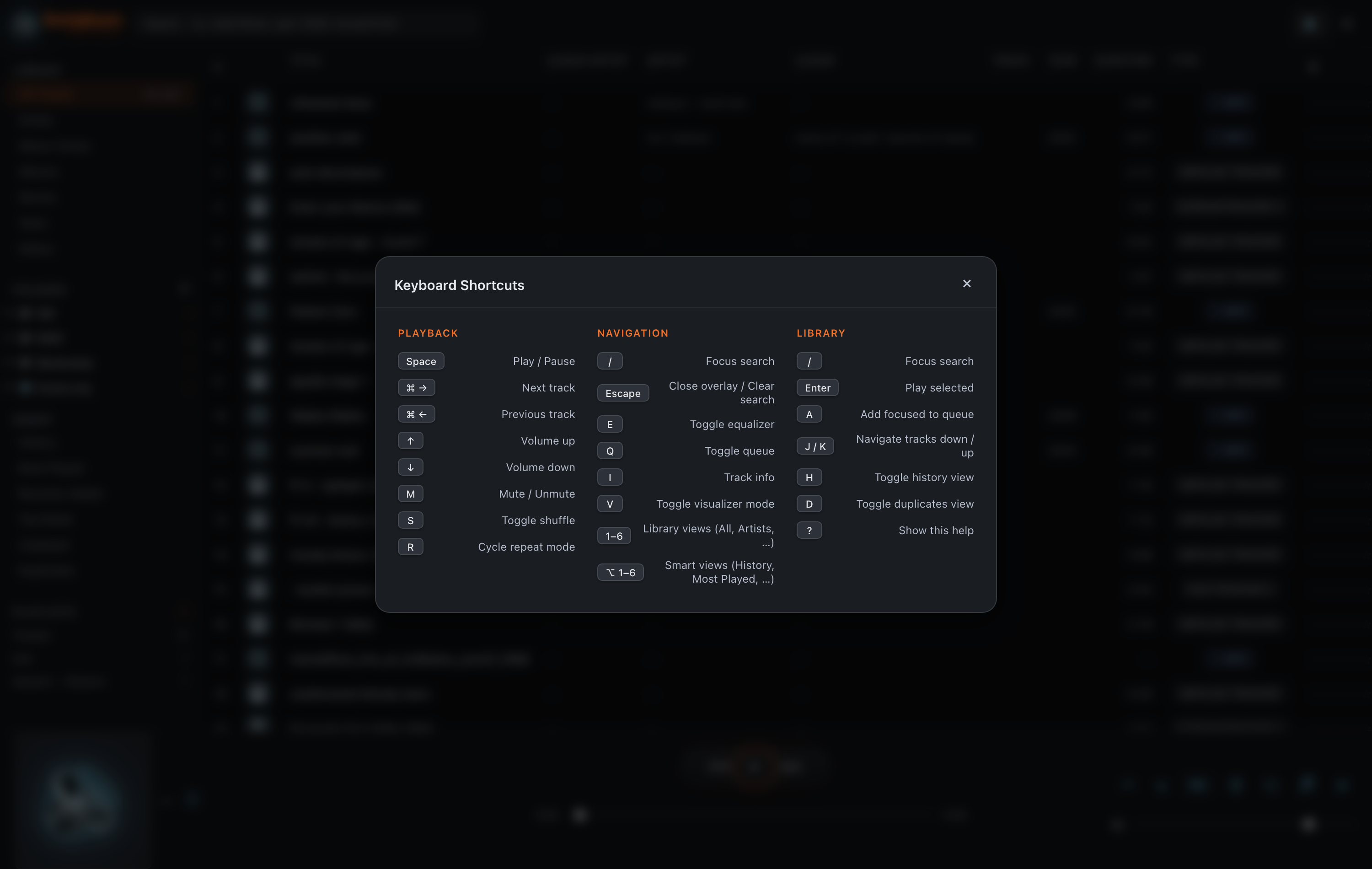
Press ? at any time to see this list inside the app. ⌘ is Command on macOS (the Super / Windows key elsewhere); ⌥ is Option / Alt.
Playback
| Space | Play / pause | M | Mute / unmute |
| ⌘ → / ← | Next / previous | S | Shuffle |
| ↑ / ↓ | Volume up / down | R | Repeat (cycle) |
| Q | Toggle the queue | E | Equalizer |
| V | Cycle the visualizer | I | Track info |
| P | Play all in the current list | ShiftP | Shuffle all in the current list |
Browse & select
| J / K | Move down / up the track list | Enter | Play the focused track |
| A | Add the focused track to the queue | / | Focus the search box |
| ? | Show this shortcut list | G | Locate the playing track |
Jump to a view
| 1–6 | Library views — All Tracks, Artists, Album Artists, Albums, Genres, Years |
| ⌥1–6 | Smart views — History, Most Played, Recently Added, Top Rated, Unplayed, Duplicates |
| H · D | Quick keys for History · Duplicates |
09Every format, at a glance
Hundreds of formats through one render pipeline — from FLAC to the deepest corners of the Amiga scene. The reference addenda below tell each one's story.
| Family | Formats | Rendered by |
|---|---|---|
| Lossless / PCM | FLAC, ALAC (M4A), WAV, AIFF, WavPack | native / ffmpeg |
| Lossy | MP3, AAC, Ogg Vorbis, Opus, Musepack | native / ffmpeg |
| DSD (1-bit) | DSF, DFF, WSD | ffmpeg |
| SID (C64) | SID, PSID, RSID | sidplayfp + HVSC Songlengths & STIL |
| MIDI | MID, MIDI | FluidSynth + SoundFonts |
| Tracker / module | MOD, S3M, XM, IT, MTM, MED, 669, DBM, ULT, STM, FAR, GDM, IMF, OKT, DSM … | libopenmpt (MED 2–4 modules: zxtune123) |
| Amiga (Hively / AHX) | AHX, HivelyTracker (HVL) | uade123 / bundled HivelyTracker engine |
| Amiga exotica (UADE) | 175+ custom players — TFMX, Future Composer, Jochen Hippel, SidMon, SoundMon, SoundFactory, David Whittaker, Delta Music, plus ~110 ProWizard-packed formats … | uade123 |
| Atari ST | SNDH, YM, SC68 | psgplay / StSound / sc68 |
| Console rips (PSF family) | PSF, PSF2, USF, GSF, 2SF, SSF, DSF (Dreamcast), NCSF | zxtune123 |
| Console chiptune | NSF, NSFe, SPC, GBS, VGM, VGZ, AY, KSS, SAP, GYM (packed GYMX too), HES | libgme |
| AdLib / OPL2 FM | id IMF, ROL, CMF, D00, RAD, LAA, SCI, DRO, HSC, RIX … | AdPlug (adplay) |
ZIP archives are scanned and played inline — tracks inside .zip files
appear in your library without unpacking.
.dsf, .dff, .wsd)
play in any browser — SoniqBoom converts them to high-resolution PCM on the fly, and the library tags each
one by rate (DSD64, DSD128, DSD256, DSD512). High-resolution
PCM — 24-bit FLAC, WAV and the like — streams to the browser without re-encoding.10Casting Beta
Send what you're playing to a TV, speaker or receiver on your network.
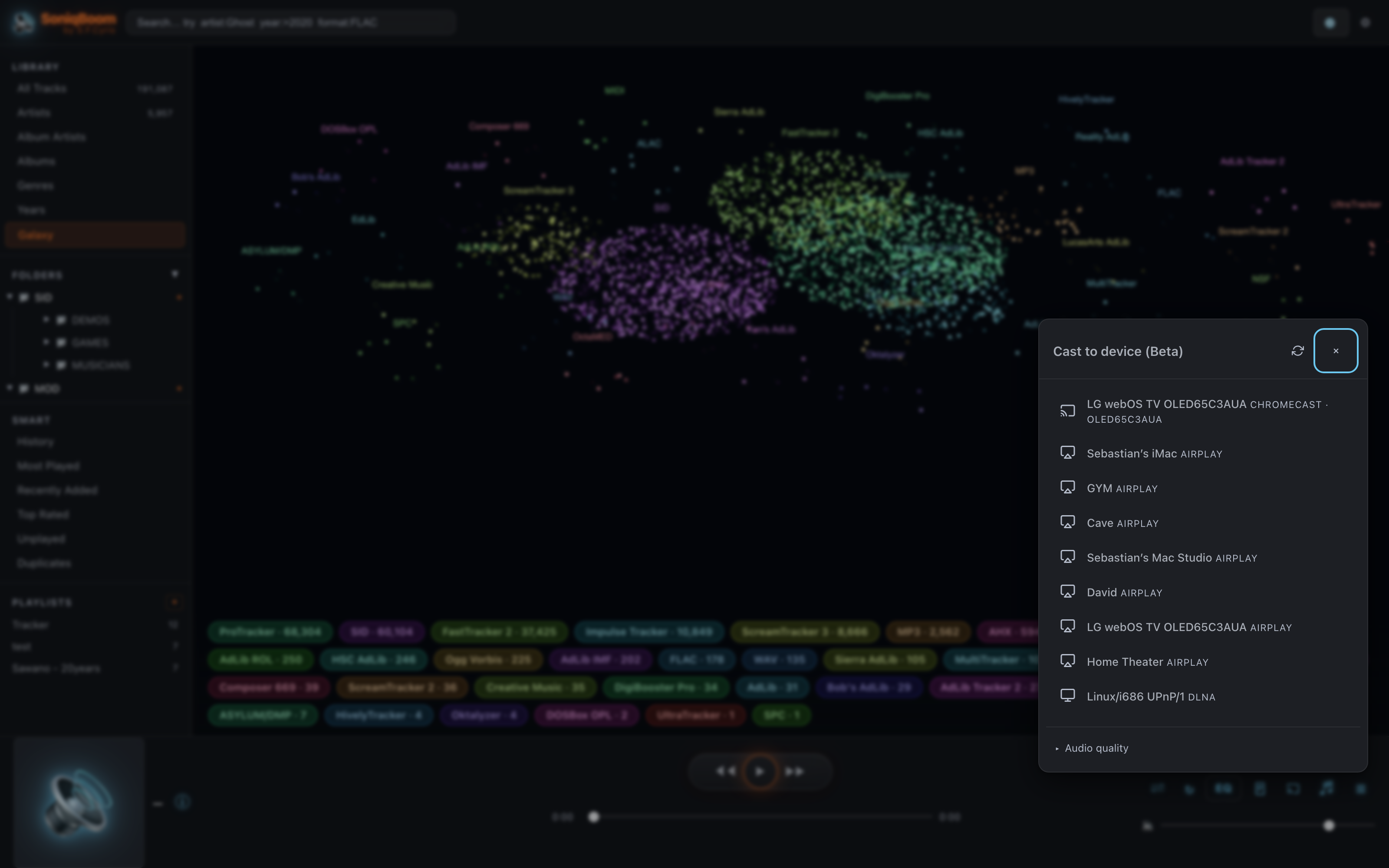
- Press the cast button in the player toolbar.
- Pick a device from the list — discovered Chromecast, Apple TV / HomePod (AirPlay), and DLNA receivers appear together.
- Playback moves to that device. Even SID, MIDI and tracker tunes are rendered to standard audio first, so they cast like any FLAC.
- Some AirPlay devices show a PIN the first time you connect — type it into the pairing dialog to authorise SoniqBoom.
- Open Audio quality in the picker to choose: Auto (lossless when the device supports it, otherwise MP3 320), Original (no transcoding), FLAC (lossless transcode for every track), or MP3 320 (smallest bandwidth, widest compatibility).
11Multi-room sync
Play the same music in step across the devices on your network — one device leads, the rest follow in lockstep.
SoniqBoom has a dedicated multi-room controller. Open it at /multiroom on your server — for
example http://localhost:8080/multiroom, or your server's own address. One device becomes the
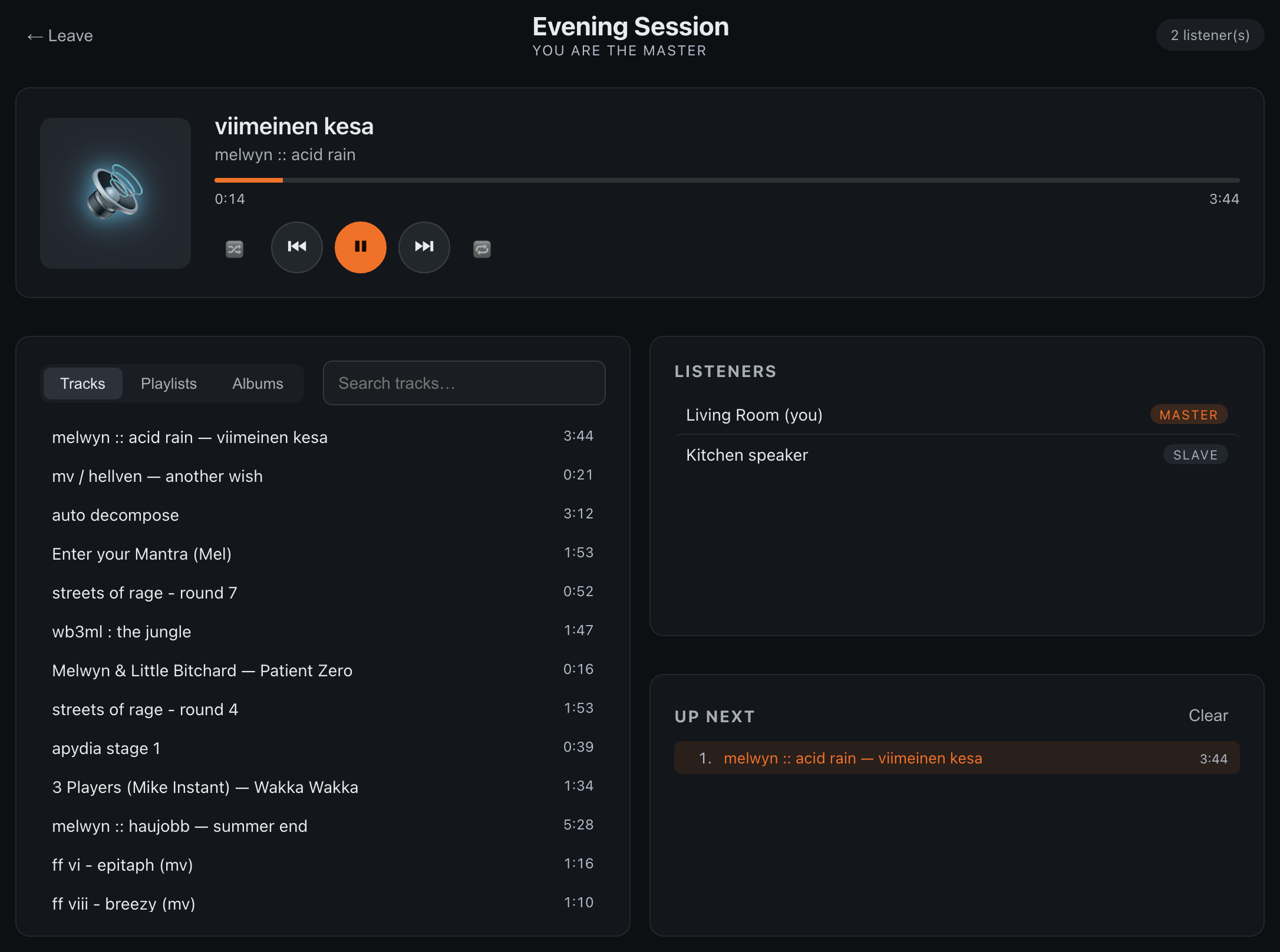
master and drives playback; every other device joins as a listener and stays
in sync.
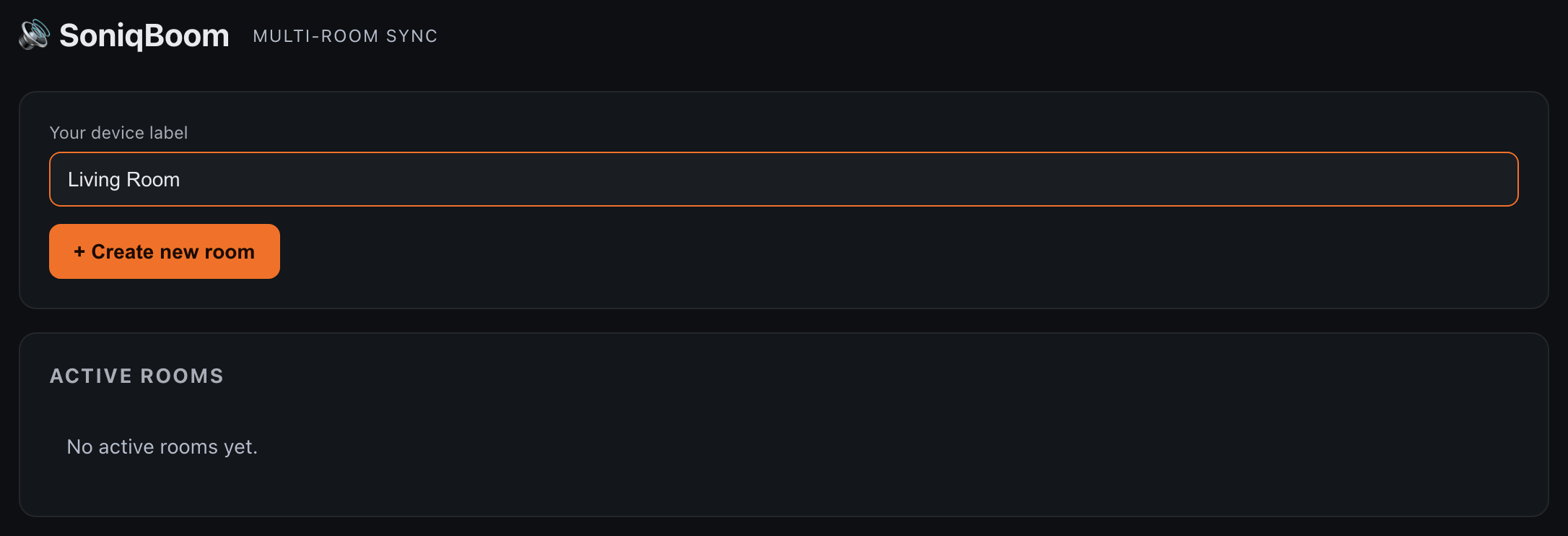
/multiroom — name your device, then create or join a room.Start a room — the master
- Open
/multiroomin a browser on the device that will lead. - Type a device label (for example Kitchen speaker).
- Click + Create new room, give the room a name, then Create & become master.
- As master you browse Tracks, Playlists and Albums, search, and control playback — play/pause, next/previous, shuffle and repeat. The Listeners panel shows every device that has joined.
Join a room — a listener
- Open
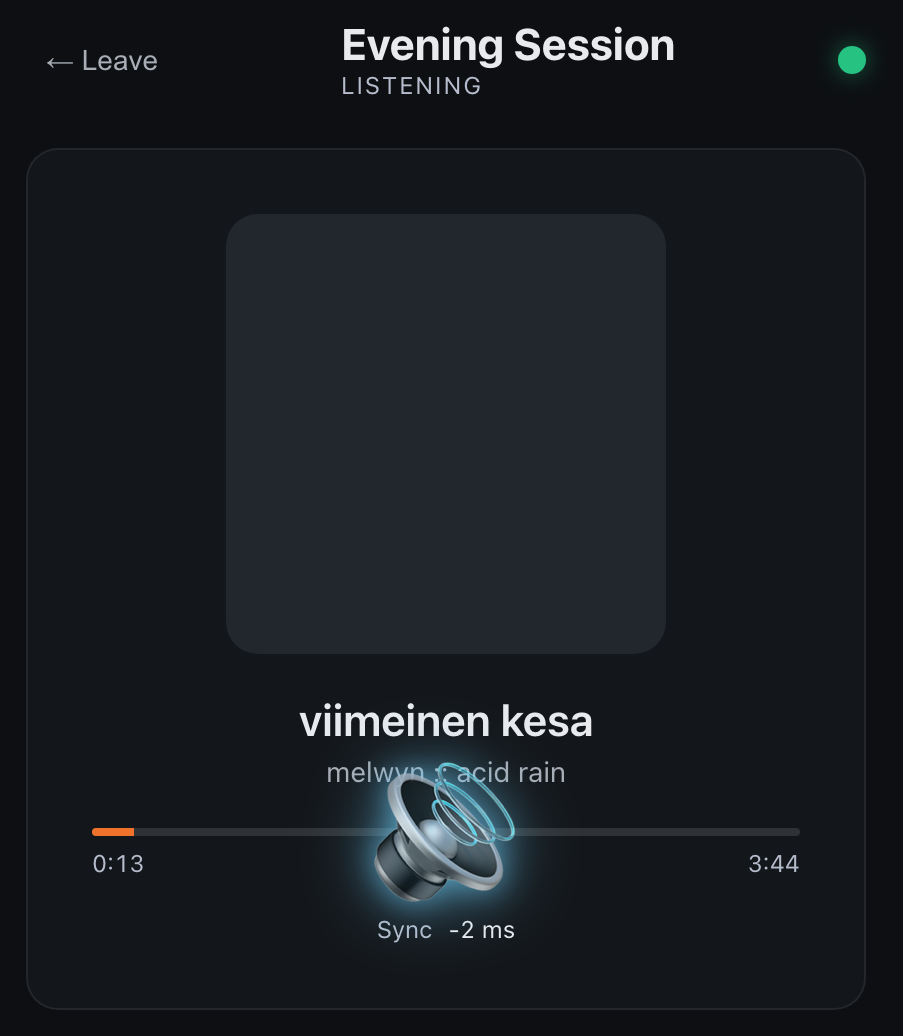
/multiroomon another device and type a device label. - Pick the room under Active rooms — you join as a listener and follow the master in sync, with a live sync-drift meter on screen.
- Press Leave to drop out. If a room has no master (the leader left), the next device to open that room becomes the master.
Stream a station to a room
A room isn't only for your own library. Open the master's 📻 Radio tab, pick any of your favourite internet-radio stations, and it plays to every device in the room at once. The now-playing card shows the station and its live artist and track as they change, right alongside the room's transport and Listeners panel.
12Listen anywhere
Subsonic apps
SoniqBoom speaks the OpenSubsonic API. Point Amperfy, Symfonium, DSub or Feishin at your server's address and sign in with your SoniqBoom username and password — apps that sign in with a token work with it too — or with a Subsonic app password or an OpenSubsonic API key from Settings. Subsonic apps that run in a web browser, such as Airsonic-refix or Feishin's web version, can connect from another address with the same server URL and sign-in.
Installable PWA
Add SoniqBoom to your home screen or dock for a full-screen, app-like experience, online or off.
On your phone
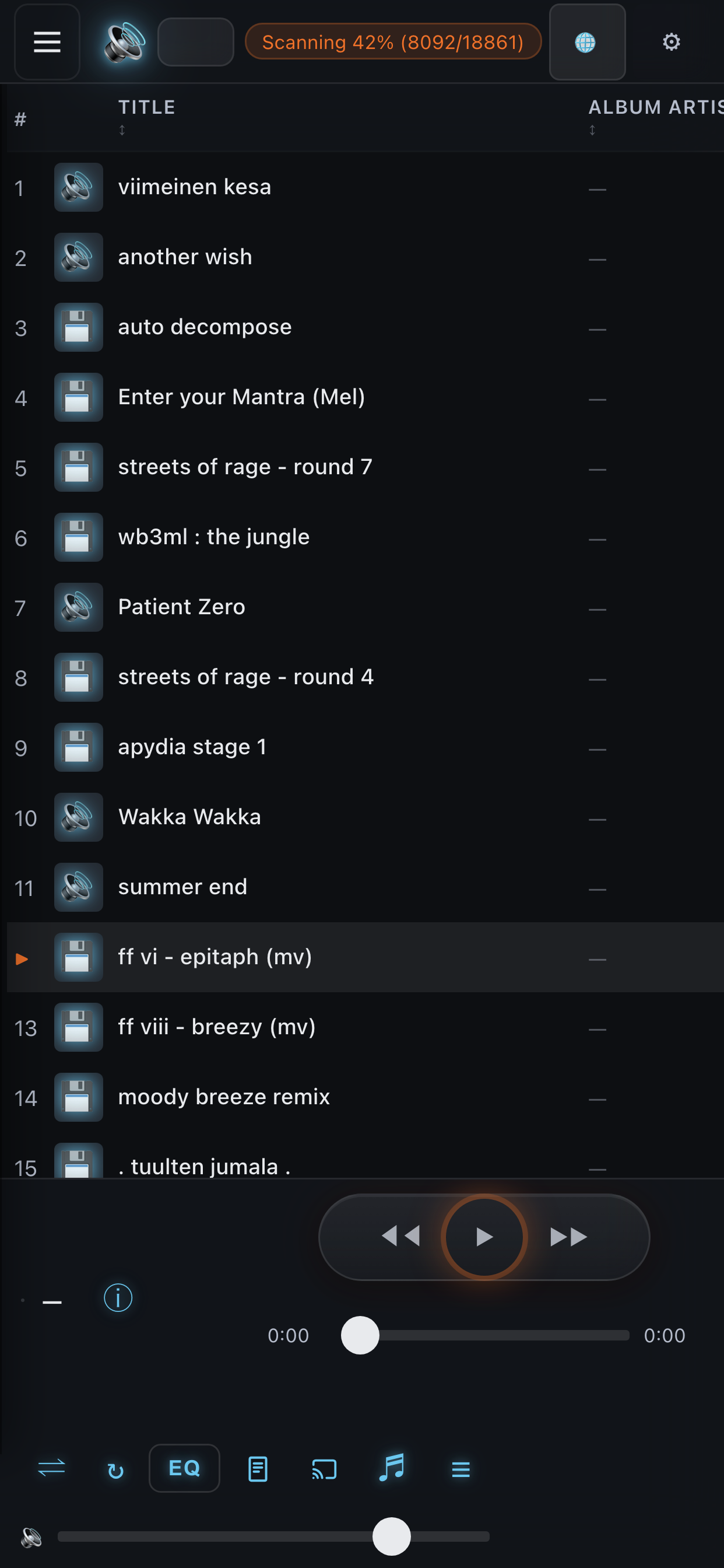
Open SoniqBoom on a phone and it adapts automatically — the full player works at phone width, and on phones the site also serves a dedicated touch-first shell with Library, Search, Radio, Queue and Now Playing tabs plus a tap-to-expand mini-player and Settings behind the gear. Browse and play your library, tune in internet radio streamed straight to your phone, build and edit playlists, and sign in right on the phone. A Desktop site link switches to the full desktop UI whenever you want it. Casting is reachable from the mobile mini-player too (Beta).
Take it offline
Press the ⤓ download button in the player toolbar to keep the current track on the device you're using — it plays even with no connection to the server. The button lights up on tracks you've downloaded; press it again to remove the copy. Everything else streams exactly as before.

Multi-user accounts and roles, last.fm and ListenBrainz scrobbling, and a light/dark theme are all built in — see Manage your library & users and Settings.
13Manage your library & users
Add network shares, keep the index fresh, back up your data, and decide who can do what — all from the admin panel (gear icon, top-right).
Add a network share — FTP, SMB or WebDAV
In the admin panel's Music Folders section, switch from Local Path to the Network Share tab and pick a protocol:
| Protocol | You enter |
|---|---|
| SMB | Host, share name and path — with a username and password, or tick Guest access. |
| FTP | Host and remote path — with a username and password, or tick Anonymous. |
| WebDAV (http / https) | A base URL — the server itself (https://dav.example.com) or a folder on it (https://cloud.example.com/remote.php/dav/files/USERNAME/Music) — with a username and password, or tick Public (no auth). |
Add an optional alias, click Test to check the connection, then + Connect — SoniqBoom attaches the share with no operating-system mount required and scans it straight away. When the connection fails, the message says why (for example a wrong password or a URL that is not a WebDAV folder). When a server refuses a share's sign-in, SoniqBoom waits before trying that login again (from 5 minutes up to 6 hours) and the share's row says so; Reconnect tries at once.
Tracks on a share start playing while they download: an MP3, WAV, Ogg or Opus file, or a FLAC with a seek table, plays from its first bytes, and a seek far ahead of what has arrived can be read straight from the share. A track inside a large ZIP archive on a share is read on its own, without downloading the whole archive. A share whose server is offline when SoniqBoom starts is marked unavailable and connects by itself once the server is reachable again.
Keep your library fresh
Local folders are watched automatically — files you add, change or remove are picked up a few seconds after the changes settle, and a file that is still being copied or downloaded is picked up once it is complete. Changes made while SoniqBoom was stopped are picked up by a rescan of the local folders a few minutes after it starts (Rescan local folders after startup in Settings). Network shares are re-checked on a periodic background poll, and you can force one with the Check now button on a remote folder. To rebuild everything by hand, use ↻ Rebuild Index; to re-scan a single folder, use its Re-Index button. While a scan is running you can Pause it and later Resume from where it left off — handy for easing server load during busy listening.
Back up & restore
The admin panel's Backup tab exports your whole database to a single date-stamped file
(soniqboom-YYYY-MM-DD.sbz) — a compressed snapshot of your track index and metadata, waveforms,
star ratings, play counts, playlists, listening history, your scan-folder list and library settings.
Import .sbz restores it; it replaces the current library data and asks you to confirm first.
users.json, subsonic_state.json and secret.key),
not in the .sbz — back up that whole folder too, keeping those files together, along with your music.
It is ~/Library/Application Support/SoniqBoom on macOS, ~/.local/share/soniqboom on
Linux (or $XDG_DATA_HOME/soniqboom), /data in Docker, or the data_dir /
SONIQBOOM_DATA_DIR you set.User accounts & roles
Manage people in the admin panel's Users tab — add a user, set their role, enable or disable them, set a password, or remove them. Three roles decide what each person can do:
| Capability | Read-only | Edit | Admin |
|---|---|---|---|
| Browse & play the whole library | ✓ | ✓ | ✓ |
| Rate tracks & build play history | ✓ | ✓ | ✓ |
| Create & manage playlists | — | ✓ | ✓ |
| Manage users, folders, settings & backups | — | — | ✓ |
New accounts come from two places: an admin adds them in the Users tab with a role, or a visitor signs themselves up from the login screen — self-registered accounts are always Read-only until an admin promotes them.
Reset a password or recover access
Run this on the server host (from inside the SoniqBoom folder) to set any user's password — it's also how you create the very first admin on a fresh install:
bash setup-admin.sh -user alice -passwd 'a-new-password'
bash setup-admin.sh -user alice -passwd 'a-new-password' -role admin   # also make them an admin
setup-admin.sh tells a running server to reload.
On Docker, do the same with docker compose exec soniqboom soniqboom-setadm ….System notes
14Settings & integrations
Open the admin panel with the gear icon (top-right) to connect outside services and tune the extras.
SoundFonts for MIDI
Open gear → Renderers → Soundfonts. Click ↑ Upload .sf2/.sf3 to add your own bank, or pick one from Download Known Soundfonts for a one-click install. Select an installed bank to make it the active MIDI voice.
HVSC for SID
Download the High Voltage SID Collection, then in gear → Renderers → HVSC SID database paste the path to its DOCUMENTS folder and click Save & reload — every SID gains its exact per-tune length and STIL credits.
SID fidelity
In gear → Renderers → SID fidelity, dial in how the C64 chip is voiced: pick the 6581 or 8580 model (or Auto), and toggle filter emulation, filter curve and digiboost. The fallback tune length for SIDs without an HVSC entry lives under System → Settings as SID duration.
Scrobbling
In gear → System → My Account, paste your ListenBrainz user token (from listenbrainz.org/profile) and/or your last.fm session key. Plays are logged automatically once a token is saved.
Subsonic apps
Copy your server URL from gear → System → Subsonic / OpenSubsonic API and sign in with your SoniqBoom username and password. Apps that sign in with a token (salt + hash) work with your SoniqBoom password too. You can optionally give them a separate Subsonic app password: click Generate new password under gear → System → My Account (or gear → Preferences for accounts without admin rights) and copy it into the app — it is shown once, and from then on token apps must use it. Apps that support OpenSubsonic API keys can sign in with a key instead: Create key in the same place, copy it into the app (also shown once), and Revoke it to sign that app out. In Subsonic apps, tracks that have no album are listed as albums named after their folder (Group album-less tracks into folder albums in the Subsonic panel, on by default); a folder shared by many artists, such as a compo pack, becomes one album per artist, and letter folders (A, B … or A-F) are grouped per artist under their parent folder and named after it, so an artist gets one album for the whole archive rather than one per letter. Turn the option off to reach those tracks only by browsing folders. Then see Listen anywhere.
What Subsonic apps see
Apps list one music folder for each scan folder in your library. A file that holds several tunes (SID, NSF and similar) also lists its other tunes in album and folder views as “Title (Tune n/N)”; each of those entries plays that tune. Downloading the original file from an app needs an admin or edit account. For app developers: apps can report what is playing with OpenSubsonic reportPlayback and find similar tracks with sonicSimilarity; f=jsonp requests must send their own credentials (u with p or with t and s, an API key, or HTTP Basic) and never use the browser session; a request with no credentials gets Subsonic error 10.
Optional services
The System → Services panel turns each network service on or off — OpenSubsonic API, Multi-room, Cast Beta and the DLNA Media Server Beta (off by default). Changes take effect after a server restart.
Game names from archive names
In gear → Metadata → Game names from archive names, Game from archive names (on by default) names a retro track's game after its archive when the archive's name is a known game of the track's platform, from the included title lists (Wikidata, No-Intro, the MAME software lists, ZXDB) and your HVSC copy. Download TOSEC and Download Redump add more titles on request. It applies right away and after each scan; turning it off removes only the names it added.
Library display
Under System → Settings you can hide duplicate copies (in search and/or folder views), hide empty folders, choose which filenames count as folder art, and toggle ZIP-archive scanning.
Theme
Switch between dark and light under gear → System → Settings → Theme; your choice is saved in the browser and applies instantly. (You can also change your own password here.)
Retro albums
In gear → Metadata → Retro albums, the opt-in Album from folder name for retro formats gives retro tracks with no album the name of their folder or archive; generic, artist and format folders are skipped, and a folder or archive named like a part of a game's music, such as “Level 1”, “Ingame” or “Game Over”, gets no album unless it sits in a folder such as “Games”, where it is taken as the game. It applies right away and after each scan, those albums show a “guessed from folder name” note in Track Info, and turning it off removes only the albums it added.
Playback preparation
In gear → Renderers → Playback preparation: Prepare upcoming tracks in advance (on by default) renders the next retro or Amiga track while the current one plays, so it starts at once; it also renders Amiga, HVL, SC68 and PSF tracks in the background to show their length in lists. With it off, tracks are rendered when they start, and those tracks show their length once they have played. Per-voice VU meters for Amiga modules (on by default) runs an extra background pass per new Amiga track for its channel meters; with it off, new Amiga tracks show the spectrum meter. Both save as soon as you change them.
Conversion cache
Rendered chiptune and transcoded audio are cached for instant replay. Adjust the size from 256 MB to 100 GB in gear → Renderers → Transcode & render cache.
Renderer status
The Renderers panel shows every decoder SoniqBoom found and flags anything to fix — for example an ffmpeg build without MP3 or DSD support — with a one-click re-download so every format keeps playing.
Backup & restore
Download a single compressed .sbz snapshot of your library — settings, playlists, ratings and play history — from the gear → Backup tab, and restore it later by uploading the file. Back up the data folder too, for user accounts and Subsonic app state.
15Troubleshooting
The handful of things people ask about first.
A track is listed but won't play
Its renderer isn't installed. Re-run bash install.sh (it installs them all), or install the one
package SoniqBoom names in the error — sidplayfp, fluidsynth, libopenmpt,
uade, libgme or adplay. Everything else keeps working in the meantime.
A SID tune shows the wrong length
Configure HVSC in Settings — without it, SID durations fall back to an estimate.
MIDI sounds thin or silent
Install or select a SoundFont in Settings; MIDI is synthesised from the active .sf2 bank.
I'm locked out / forgot the admin password
On the server host (inside the SoniqBoom folder), reset any account from the command line:
bash setup-admin.sh -user <name> -passwd '<new password>'
(add -role admin to restore admin rights) — it takes effect immediately.
See Manage your library & users.
A scan reports files it didn't index
A file whose metadata can't be read within about 90 seconds, or whose reading crashes the scanner's worker process, is skipped and counted as a scan error, and the scan goes on with the next one. When five files inside the same archive time out in a row, the rest of that archive is skipped too. The automatic rescans (the folder watcher and the rescan after startup) try a skipped file again only after a wait that grows each time it is skipped — an hour, then four, then sixteen, up to a week; a file that has changed is tried at the next scan; each scan tries a limited number of them. If a network share stops answering during a scan, the scan shows Waiting for … to answer and waits up to about three minutes; if the share is still silent, the rest of that library folder is left for the next scan. Tracks already in your library stay. Once the files or the share are readable again, use the folder's Re-Index button — it tries skipped files again without the wait.
A network share won't connect
In the admin panel's Music Folders → Network Share form, use Test before connecting — it reports the exact connection error. Check the host, share name / path and credentials, and that the server can reach the share on your network.
A cast device doesn't appear
It must be on the same Wi-Fi / LAN as the server, and casting is in Beta — behaviour varies by device. Wake the device, then use the picker's Search again button.
The app didn't change after an upgrade
SoniqBoom is an installable PWA, so the browser may still be serving a cached shell — reload the page (or remove and re-add the installed app) to fetch the new version.
16Reference library
Three illustrated histories of the music SoniqBoom plays — where every format came from, and why it sounds the way it does.
A Field Guide to Music Formats ▸
From FLAC and DSD to SID, MIDI and OPL FM — the origin, hardware and codec behind every format, with reference links.
🎛️The Tracker Lineage ▸
Soundtracker to Impulse Tracker — the Amiga birth of module music, the PC tracker explosion, and the demoscene.
🕹️Music in Retro Gaming ▸
How game soundtracks were made, chip by chip — NES, C64, Genesis, Game Boy, SNES, MSX and DOS.